Install
openclaw skills install @hith3sh/segment-cdpSegment CDP integration with API key authentication. Manage sources, destinations, contacts, segments, and tracking events for customer data platform operations.
openclaw skills install @hith3sh/segment-cdp
Connect to Segment's Customer Data Platform to manage sources, destinations, contacts, segments, and track user events. Send identity and event data, manage suppression lists, and configure marketing integrations.
This skill uses ClawLink for hosted connection flows and credentials so you do not need to configure Segment API access yourself.
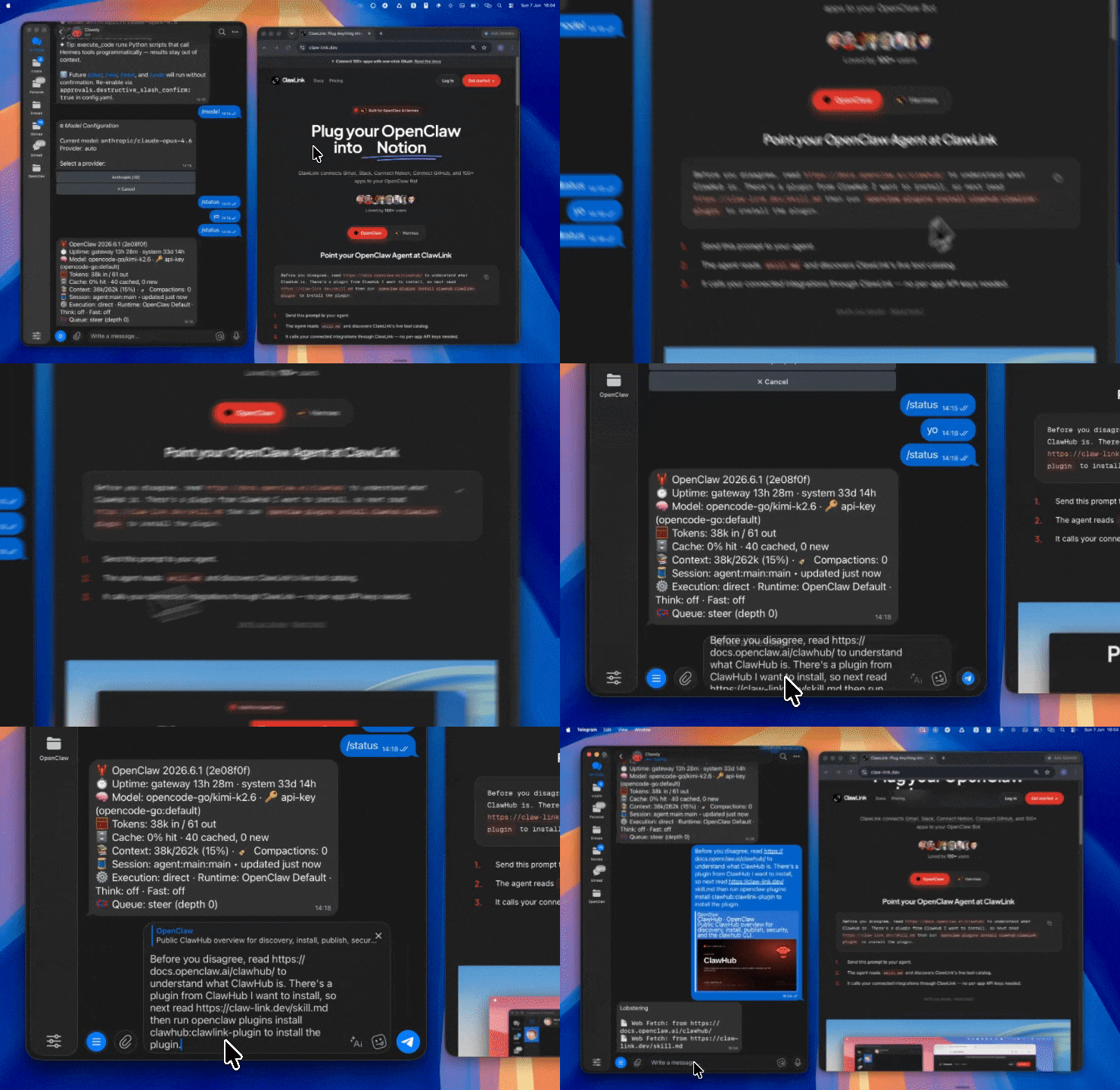
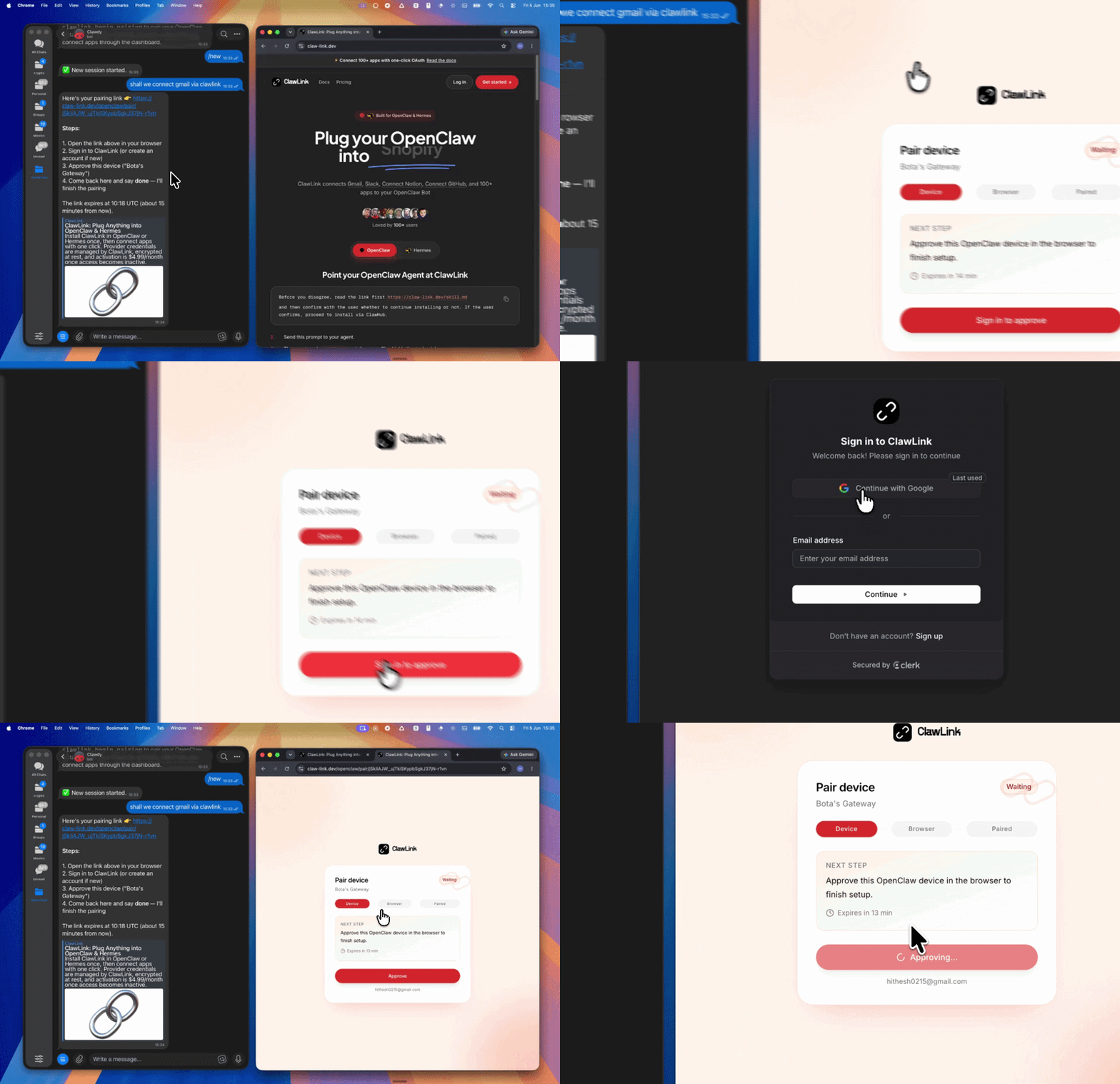
| Step 1: Install | Step 2: Pair Account | Step 3: Connect Segment |
|---|---|---|
 |  | App-specific connection GIF coming soon |
| Run the install command in OpenClaw | Sign in and approve the device | Open the dashboard and connect Segment |
┌─────────────────┐     ┌──────────────┐     ┌──────────────────┐
│   OpenClaw      │────▶│   ClawLink   │────▶│  Segment API     │
│   (User Chat)   │     │   (Proxy)    │     │  (Sources,       │
│                 │     │              │     │  Destinations)   │
└─────────────────┘     └──────────────┘     └──────────────────┘
         │                    │                      │
         │  1. Install Plugin │                      │
         │  2. Pair Device    │                      │
         │  3. Connect Segment │                      │
         │                    │  4. API Key Proxy    │
         │                    │  5. Request Forward  │
         │                    │                      │
         ▼                    ▼                      ▼
   ┌──────────┐        ┌──────────┐         ┌──────────┐
   │   SKILL  │        │ Dashboard│         │  Segment │
   │   File   │        │   Auth   │         │   CDP    │
   └──────────┘        └──────────┘         └──────────┘
Install the verified ClawLink plugin from ClawHub. After the user confirms, complete the full setup so ClawLink tools are visible in the next OpenClaw chat.
openclaw plugins install clawhub:clawlink-plugin
openclaw config set tools.alsoAllow '["clawlink-plugin"]' --strict-json
openclaw gateway restart
Then tell the user: "OpenClaw has been restarted. Send /new as a standalone message to start a fresh chat, then ask for Segment again."
# Get destination details
clawlink_call_tool --tool "segment_get_destination" --params '{"destination_id": "YOUR_DESTINATION_ID"}'

# List warehouses connected to a source
clawlink_call_tool --tool "segment_list_connected_warehouses_from_source" --params '{"source_id": "YOUR_SOURCE_ID"}'

# Identify a user with traits
clawlink_call_tool --tool "segment_identify" --params '{"user_id": "USER123", "traits": {"email": "user@example.com", "name": "Alice"}}'
All Segment tool calls are authenticated automatically by ClawLink using your Segment API key stored securely in the dashboard.
No API key is required in chat. ClawLink injects your API key into every Segment API request on your behalf.
clawlink_begin_pairing if it is not configured yet.clawlink_list_integrations to verify the connection is active.clawlink_list_integrations
Response: Returns all connected integrations. Look for segment in the list.
clawlink_list_tools --integration segment
Response: Returns the live tool catalog for Segment.
If Segment tools are missing or the connection shows an error:
clawlink_list_integrations to verifyclawlink_list_tools --integration segment| Tool | Description | Mode |
|---|---|---|
segment_add_labels_to_source | Add existing labels to a Source for metadata tagging | Write |
segment_delete_source | Permanently delete a Segment Source by ID | Write |
segment_list_connected_warehouses_from_source | List warehouses connected to a Source | Read |
segment_list_schema_settings_in_source | Retrieve schema configuration settings for a Source | Read |
segment_update_source | Update a Source's metadata and settings | Write |
| Tool | Description | Mode |
|---|---|---|
segment_get_destination | Retrieve a Destination's full configuration by ID | Read |
segment_list_delivery_metrics_summary_from_destination | Get event delivery metrics summary from a Destination | Read |
| Tool | Description | Mode |
|---|---|---|
segment_alias | Alias a previous user ID to a new user ID (merge anonymous and known identities) | Write |
segment_group | Associate an identified user with a group via Segment HTTP Tracking API | Write |
segment_identify | Identify a user and set/update traits via Segment HTTP Tracking API | Write |
segment_page | Record a page view via Segment HTTP Tracking API | Write |
segment_screen | Record a mobile app screen view via Segment HTTP Tracking API | Write |
segment_track | Record a custom user event via Segment HTTP Tracking API | Write |
| Tool | Description | Mode |
|---|---|---|
segment_batch | Send multiple analytics calls (Identify/Track/Page/Screen/Group) in a single batch request | Write |
segment_import_historical_data | Import historical data in bulk with support for original timestamps | Write |
| Tool | Description | Mode |
|---|---|---|
segment_remove_source_write_key | Revoke an existing write key for a Source (security rotation) | Write |
| Tool | Description | Mode |
|---|---|---|
segment_get_daily_per_source_api_calls_usage | Fetch daily API call counts per source for a given period | Read |
clawlink_call_tool --tool "segment_identify" \
  --params '{
    "user_id": "USER123",
    "traits": {
      "email": "alice@example.com",
      "name": "Alice Smith",
      "plan": "pro"
    }
  }'
clawlink_call_tool --tool "segment_track" \
  --params '{
    "user_id": "USER123",
    "event": "Purchased",
    "properties": {
      "product": "Widget",
      "price": 29.99,
      "currency": "USD"
    }
  }'
clawlink_call_tool --tool "segment_add_labels_to_source" \
  --params '{"source_id": "YOUR_SOURCE_ID", "labels": ["production", "web"]}'
clawlink_call_tool --tool "segment_batch" \
  --params '{
    "batch": [
      {"type": "identify", "traits": {"email": "bob@example.com"}},
      {"type": "track", "event": "Signed Up", "properties": {"source": "landing-page"}}
    ]
  }'
clawlink_list_integrations to confirm Segment is connected.clawlink_list_tools --integration segment to see the live catalog.clawlink_search_tools with a short query and integration segment.┌─────────────────────────────────────────────────────────────┐
│ READ OPERATIONS (Safe) │
│ list → get → describe → call │
│ │
│ Example: List destinations → Get metrics → Show results │
└─────────────────────────────────────────────────────────────┘
│
▼
┌─────────────────────────────────────────────────────────────┐
│ WRITE OPERATIONS (Require Confirmation) │
│ describe → preview → confirm → call │
│ │
│ Example: Describe tool → Preview changes → User approves │
│ → Execute track/identify │
└─────────────────────────────────────────────────────────────┘
clawlink_describe_tool first.whenToUse, askBefore, safeDefaults, examples, and followups to shape the call.clawlink_preview_tool first.clawlink_call_tool. Pass confirmation only after the preview matches the user's intent.user_id or anonymous_id) — without one, events cannot be associated with users.timestamp field) to maintain accurate event chronology.| Status / Error | Meaning |
|---|---|
| Tool not found | The tool name does not exist in the current catalog. Verify with clawlink_list_tools --integration segment. |
| Missing connection | Segment is not connected. Direct the user to https://claw-link.dev/dashboard?add=segment. |
invalid_source_id | The specified source does not exist or is not accessible with the current API key. |
invalid_destination_id | The specified destination does not exist or is not accessible. |
missing_identity | Track/Page/Screen calls require at least user_id or anonymous_id. |
| Write rejected | User did not confirm a write action. Always confirm before executing writes. |
openclaw plugins list
/new as a standalone message to reload the catalog.openclaw config set tools.alsoAllow '["clawlink-plugin"]' --strict-json
openclaw gateway restart
/new again and retry.segment.clawlink_describe_tool to verify parameter names and types before calling.clawlink_preview_tool first.Powered by ClawLink — an integration hub for OpenClaw