

Install
openclaw skills install @xuri/excelizeUse when you need to reading and writing Microsoft Excel™ (XLAM / XLSM / XLSX / XLTM / XLTX) spreadsheets.
openclaw skills install @xuri/excelizePackage excelize-py is a Python port of Go Excelize library, providing a set of functions that allow you to write and read from XLAM / XLSM / XLSX / XLTM / XLTX files. Supports reading and writing spreadsheet documents generated by Microsoft Excel™ 2007 and later. Supports complex components by high compatibility, and provided streaming API for generating or reading data from a worksheet with huge amounts of data. This library needs Python version 3.9 or later. The full API docs can be found at docs reference.
pip install excelize
Here is a minimal example usage that will create spreadsheet file.
import excelize

f = excelize.new_file()
try:
    # Create a new sheet.
    index = f.new_sheet("Sheet2")
    # Set value of a cell.
    f.set_cell_value("Sheet2", "A2", "Hello world.")
    f.set_cell_value("Sheet1", "B2", 100)
    # Set active sheet of the workbook.
    f.set_active_sheet(index)
    # Save spreadsheet by the given path.
    f.save_as("Book1.xlsx")
except (RuntimeError, TypeError) as err:
    print(err)
finally:
    err = f.close()
    if err:
        print(err)
The following constitutes the bare to read a spreadsheet document.
import excelize

try:
    f = excelize.open_file("Book1.xlsx")
except (RuntimeError, TypeError) as err:
    print(err)
    exit()
try:
    # Get value from cell by given worksheet name and cell reference.
    cell = f.get_cell_value("Sheet1", "B2")
    print(cell)
    # Get all the rows in the Sheet1.
    rows = f.get_rows("Sheet1")
    for row in rows:
        for cell in row:
            print(f"{cell}\t", end="")
        print()
except (RuntimeError, TypeError) as err:
    print(err)
finally:
    # Close the spreadsheet.
    err = f.close()
    if err:
        print(err)
With Excelize chart generation and management is as easy as a few lines of code. You can build charts based on data in your worksheet or generate charts without any data in your worksheet at all.
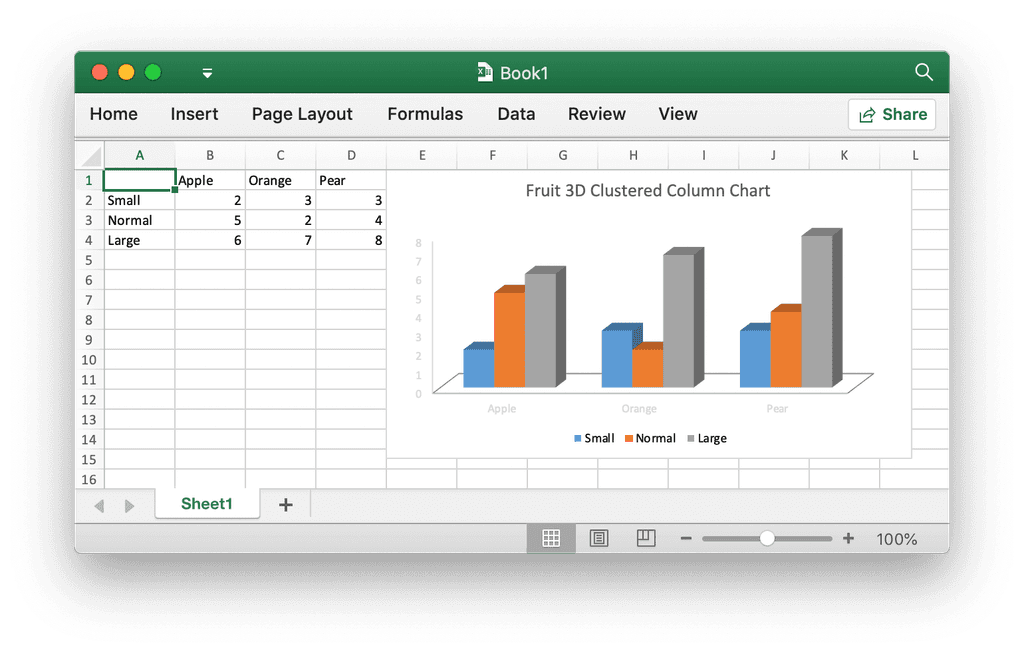
import excelize

f = excelize.new_file()
data = [
    [None, "Apple", "Orange", "Pear"],
    ["Small", 2, 3, 3],
    ["Normal", 5, 2, 4],
    ["Large", 6, 7, 8],
]
try:
    for idx, row in enumerate(data):
        cell = excelize.coordinates_to_cell_name(1, idx + 1, False)
        f.set_sheet_row("Sheet1", cell, row)
    chart = excelize.Chart(
        type=excelize.ChartType.Col3DClustered,
        series=[
            excelize.ChartSeries(
                name="Sheet1!$A$2",
                categories="Sheet1!$B$1:$D$1",
                values="Sheet1!$B$2:$D$2",
            ),
            excelize.ChartSeries(
                name="Sheet1!$A$3",
                categories="Sheet1!$B$1:$D$1",
                values="Sheet1!$B$3:$D$3",
            ),
            excelize.ChartSeries(
                name="Sheet1!$A$4",
                categories="Sheet1!$B$1:$D$1",
                values="Sheet1!$B$4:$D$4",
            ),
        ],
        title=[excelize.RichTextRun(text="Fruit 3D Clustered Column Chart")],
    )
    f.add_chart("Sheet1", "E1", chart)
    # Save spreadsheet by the given path.
    f.save_as("Book1.xlsx")
except (RuntimeError, TypeError) as err:
    print(err)
finally:
    err = f.close()
    if err:
        print(err)
import excelize

try:
    f = excelize.open_file("Book1.xlsx")
except (RuntimeError, TypeError) as err:
    print(err)
    exit()
try:
    # Insert a picture.
    f.add_picture("Sheet1", "A2", "image.png", None)
    # Insert a picture to worksheet with scaling.
    f.add_picture("Sheet1", "D2", "image.jpg", excelize.GraphicOptions(
        scale_x=0.5,
        scale_y=0.5,
    ))
    # Insert a picture offset in the cell with printing support.
    f.add_picture("Sheet1", "H2", "image.gif", excelize.GraphicOptions(
        print_object=True,
        lock_aspect_ratio=False,
        offset_x=15,
        offset_y=10,
        locked=False,
    ))
    # Save the spreadsheet with the origin path.
    f.save()
except (RuntimeError, TypeError) as err:
    print(err)
finally:
    # Close the spreadsheet.
    err = f.close()
    if err:
        print(err)