

Install
openclaw skills install @tseng71/image-deckCreate visual PPT and PowerPoint decks with GPT Image 2.
openclaw skills install @tseng71/image-deckimage-deck is used to create PPT, PowerPoint-style presentations, slide decks, and carousel decks where every page is a complete generated image. It uses Codex built-in image_gen (GPT Image 2) to generate slides one by one, with each slide's title, labels, and short copy generated inside the same image.
This skill requires Codex built-in image_gen (GPT Image 2).
Search keywords: slide, slides, slide deck, presentation, PowerPoint, PPT, PPTX, deck, carousel, GPT Image 2, image generation, OpenClaw, Codex.
Use this skill by default when the user asks to make a PPT, PowerPoint-style presentation, slide deck, slides, single slide, deck, or carousel, including requests like "make a PPT", "create a PowerPoint", "build a presentation", "make slides", "create slides", "generate slides", "make a slide", "create a slide deck", "make a deck", "做PPT", "制作PPT", "帮我做PPT", "生成PPT", or "做演示文稿".
If the user explicitly asks for an ordinary editable PPT, a text-overlay workflow, or precise editable tables/charts, use a normal presentation workflow instead.
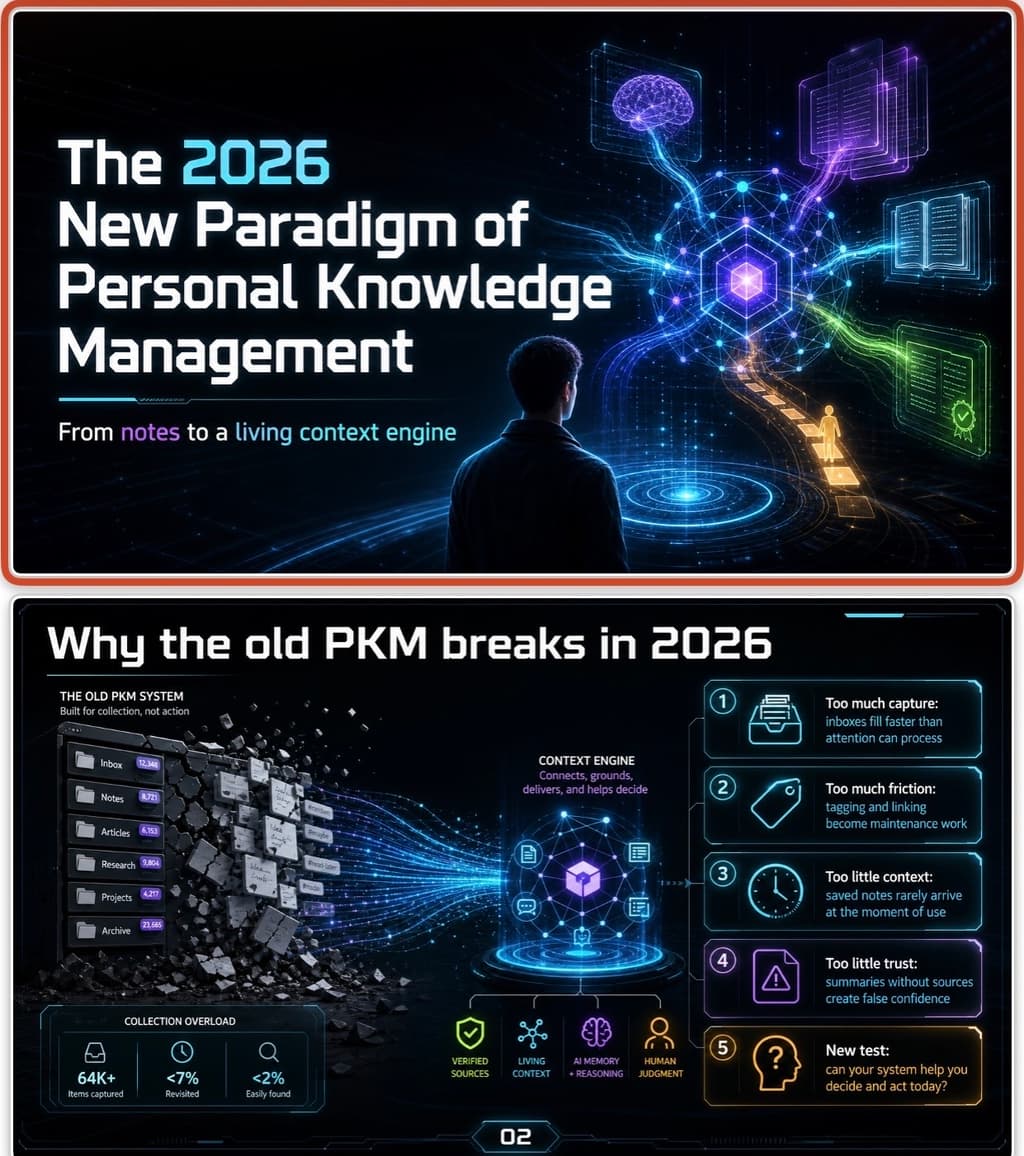
ClawHub page:
https://clawhub.ai/tseng71/image-deck
GitHub repository / Codex install URL:
https://github.com/tseng71/skills
Codex:
mkdir -p ~/.codex/skills
cp -R skills/image-deck ~/.codex/skills/image-deck
Restart Codex after installing.
这是 tseng71 的个人 AI Agent Skills 仓库中的一个 skill。
image-deck 用于制作“每一页都是完整生成图片”的 PPT、PowerPoint 风格演示、slide deck 和 carousel deck。它会通过 Codex 内置的 image_gen(GPT Image 2)逐页生成,每页的标题、标签和短文案都在同一张生成图里完成。
使用这个 skill 需要可用的 Codex 内置 image_gen(GPT Image 2)。
搜索关键词:slide、slides、slide deck、presentation、PowerPoint、PPT、PPTX、deck、carousel、GPT Image 2、image generation、OpenClaw、Codex。
用户说“做 PPT”“制作 PPT”“帮我做一个 PPT”“生成 PPT”“做 slides”“做 deck”“做演示文稿”等,都应默认触发这个 skill。
如果用户明确要求普通可编辑 PPT、后期叠文字流程,或者需要大量精确可编辑表格/图表,再改用普通演示文稿流程。
ClawHub 页面:
https://clawhub.ai/tseng71/image-deck
GitHub 仓库 / Codex 安装地址:
https://github.com/tseng71/skills
Codex:
mkdir -p ~/.codex/skills
cp -R skills/image-deck ~/.codex/skills/image-deck
安装后重启 Codex。
Use this skill to produce decks where each slide is a complete finished PPT page generated through Codex built-in image_gen (GPT Image 2), including the slide's visible text and visual elements inside the same image. Then assemble those images into PPTX/PDF if requested. The core job is consistency control: ask for topic, style, page count, language, and text richness/content density; research the topic when no source document is supplied; build a visual bible; show the slide-by-slide design document and complete prompt groups inline in the chat for one combined review; generate exactly one master sample through Codex image_gen (GPT Image 2); show the sample and stop; wait for explicit user approval of the sample; only then generate each remaining slide through Codex image_gen (GPT Image 2) using the same locked system; inspect every result; and regenerate only the slides that drift, fall below the selected text richness mode, or that the user asks to revise.
Use the regular imagegen skill as the execution path for Codex built-in image_gen (GPT Image 2). This skill supplies the art-direction workflow around that image generation capability.
Do not call the Presentations skill/plugin just because the user asks for a PPT. This skill is not an editable-presentation workflow. During intake, attachment reading, source extraction, outlining, prompt planning, image generation, QA, and prompt revision, do not use Presentations. If a PPTX is needed at the end, prefer a minimal image-to-PPTX assembly path that places the already-generated slide images full-bleed, with no extra visible content.
Prefer this skill for broad deck-making requests, even when the user does not say "image-deck" explicitly:
Only route away from this skill when the user explicitly asks for a normal editable PPT, editable text boxes, editable charts/tables, or a workflow where images are generated first and text is overlaid later.
Follow this order for every new deck request. Do not skip a step because the user said "make a PPT", attached a file, or mentioned this skill by name.
image_gen (GPT Image 2). Silence, lack of objection, or approval of the earlier overall design is not sample-style approval.The two gates are mandatory and distinct: Gate 1 is overall design approval and authorizes one sample; Gate 2 is sample-style approval after the sample is displayed and authorizes the remaining slides. Never merge, skip, or infer either gate from urgency or from a generic first-stage approval.
Keep the gate mechanics internal. In user-facing copy, do not say "this is the first confirmation," "this only authorizes one sample," or explain what will not be generated unless the user asks. Use natural production language instead:
以上是这套 PPT 的整体设计方案。请确认内容结构、页面安排和视觉方向是否合适。
如无修改,请回复“确认整体设计”。我会先制作第 <N> 页样张供你查看;样张风格确认后,再完成其余 <M> 页。
Set <M> to the total requested page count minus the one sample page. Keep this confirmation concise; do not repeat the full two-gate policy in the message.
Once prompt groups have been shown to the user, treat them as the visible review package. Do not withdraw, replace, or re-output the entire package because of later self-corrections. If a correction is needed after display, append a short revision note and show only the affected slide prompts or affected group.
If an OpenClaw or other runtime cannot show a structured UI question, ask the questions as plain text in one message and wait for the user's answer. Do not infer missing page count, language, style, or text richness silently, except that page count may be offered as "about 15 slides" for the user to accept or change.
When this skill is active, a slide is valid only if the complete slide image came from one of these sources:
image_gen (GPT Image 2) call made for that specific slideimage_gen (GPT Image 2) regeneration call made for that specific slideIf Codex built-in image_gen (GPT Image 2) is unavailable in the active environment, stop and tell the user that this skill needs Codex image_gen (GPT Image 2).
Do not satisfy this skill by rendering slides with HTML/CSS, Python drawing, matplotlib, PowerPoint shapes, screenshots, PDF page renders, stock photos, local templates, or presentation JSX. Those tools may be used only after generation to assemble, crop, inspect, contact-sheet, or export the already-generated slide images.
Do not treat "background generated by an image model plus locally overlaid slide layout" as valid output. There is no hybrid mode in this skill. If the slide needs a title, caption, label, chart title, or short bullet, that visible text must be requested in the Codex image_gen (GPT Image 2) prompt and must appear inside the generated image itself.
When assembling PPTX/PDF, each slide must contain the generated image as the only visible slide content, except for native PowerPoint slide-number fields added to PPTX after image generation. Do not add separate text boxes, captions, icons, shapes, charts, or labels after generation. If text is missing, wrong, or unreadable, regenerate the slide image instead of overlaying corrected text locally.
Do not invoke Presentations to design, analyze, convert, or recreate slide content for this skill. It is acceptable only as a last-mile packaging/inspection fallback after all images already exist, and only if the simpler image-to-PPTX path is unavailable or the user explicitly asks for that route.
Keep an image-generation-log.md with one row per slide:
image_gen (GPT Image 2) call/output pathBefore reporting completion:
image_gen (GPT Image 2).Ask exactly these required setup questions before writing final prompts unless the user already supplied the answers. Do not ask them as bare questions. Include your recommended answer for page count, style, and text richness/content density, but do not recommend a language; ask the user to choose the language.
These questions are mandatory in OpenClaw too. If there is no structured question tool, ask in plain text as a compact checklist:
Before I design the deck, please confirm:
1. Page count: I recommend <recommended count> because <short reason>. Use this, or another number?
2. Language: please choose Chinese, English, or bilingual.
3. Style: I recommend <best style> first, with <second style> and <third style> as alternatives. Choose one from the menu below, or describe a custom style.
4. Text richness/content density: I recommend information-rich / 文字丰富 by default, so the deck has enough useful in-image explanation. Choose information-rich, balanced, concise, or describe another preference.
5. Topic/source: if no file or notes were attached, what is the topic?
Do not proceed to deck design, prompt writing, or image generation until the required answers are known. If the user replies with only partial answers, ask only for the missing items.
Ask for output format only when the user asks for a deliverable instead of prompt planning.
Offer this style menu by default. Keep it visible enough for the user to choose, but allow a custom reference:
If the user asks for 15 pages and does not specify a style, propose two fitting styles from the menu based on the topic instead of asking a long follow-up. If the topic is known but the user gave no page count, include your page-count recommendation in the same question.
Before writing the deck spine or image prompts, establish the content basis:
research-notes.md with source links and usable takeaways.Attachment reading rules:
source-map.md with sections/pages and usable takeaways, then build the slide spine from that map and the requested page count.image_gen (GPT Image 2).For time-sensitive, technical, legal, medical, financial, company, product, market, or news topics, browse current sources before committing to slide claims. Prefer official or primary sources when available.
Keep research deck-oriented:
Only after this pass, create the slide list and visual bible.
All visible content must be generated inside each slide image. This includes the title, subtitle, bullet-style callouts, labels, section tag, captions, and any short copy.
Default to 图文并茂的 PPT 页面, not decorative backgrounds. Match text density to the selected content-density mode and slide role:
Keep text concise enough for Codex image_gen (GPT Image 2) to render. Prefer readable, useful phrases over long paragraphs. In information-rich and balanced modes, a normal content slide should carry meaningful information in the image itself: the main point plus concrete explanation, evidence, examples, steps, comparisons, cautions, or decision logic as appropriate to the slide. If a content slide falls below the selected content-density mode, regenerate with clearer PPT-page text instructions.
When planning text density, honor the selected mode. If the user has not chosen a mode yet, ask before planning. If the user chooses concise, keep the page intentionally concise instead of silently turning it into an information-rich report page.
If exact long copy, dense tables, detailed charts, or perfect typography are required, explain that this skill is not the right fit and suggest a normal editable PPT workflow instead. Do not switch to local text overlays inside this skill.
Create a PPT slide-by-slide design document before generating prompts. Display it directly in the chat, not only as a file or attachment. The design document is the user's planning preview and must be shown before prompt groups.
For each slide, include:
Use this inline format:
PPT Slide-by-Slide Design Document

Slide 1 - Cover
Role:
Visible text:
Visual design:
Notes:

Slide 2 - ...
Role:
Visible text:
Visual design:
Notes:
For normal content slides, the "Visible text" field must draft concrete in-image copy. In information-rich mode, it should be substantial and specific to the topic. In balanced mode, it should be tighter but still useful. In concise mode, it may be shorter and more visual, but the short text should still feel intentional and useful rather than generic placeholders.
Do not ask the user to approve this design document as a separate confirmation gate. Show it as the planning preview, then continue to the visual bible and prompt groups. If the user interrupts with changes to page count, language, slide order, text richness, or style at this stage, update the design document and show the revised affected slides inline.
The cover must be planned as a cover, not as a normal inner content page. It should have a title-page composition: cover-suitable hero visual, large main title, and at most one subtitle. Do not plan any other cover text unless the user explicitly asks for it. Chapter/divider pages may use a different rhythm from content pages, while still sharing the same visual system.
When writing prompts, choose whatever background, scene, diagram, or visual metaphor best serves each slide. Keep the selected PPT style consistent, but do not force matching backgrounds or repeated hero scenes.
For image-only decks, avoid dense tables, long paragraphs, exact financial disclosures, and tiny body copy that must be read precisely. Convert complex content into PPT-friendly generated slide text: concise claims, bullets, callouts, captions, labels, and annotations. For content slides, do not over-constrain the model to remove all small text; naturally generated supporting detail text is often useful for making a slide feel rich and complete.
For any deck type, choose the type and amount of detail that best serves the slide. Do not hard-code a fixed text count or fixed detail categories unless the user asks for them.
Write a reusable visual bible and keep it fixed across all slide prompts. Include:
Read references/prompt-patterns.md when writing the visual bible or per-slide prompt template.
Each prompt must contain:
Change only the slide-specific block between slides. Keep the rest verbatim unless deliberately iterating the global style.
Create prompt groups for review:
Also save prompts in a task workspace, usually:
prompts/
├── visual-bible.md
├── 00-master-sample.md
├── 01-slide.md
├── 02-slide.md
└── ...
Read references/prompt-patterns.md for the per-slide prompt template and regeneration patch patterns.
Before any Codex image_gen (GPT Image 2) call, show the user:
Ask the user once to approve the overall design or request edits. This confirmation covers the full-deck structure, slide-by-slide content, visual bible, and prompts, but it is not authorization to generate all slides. It authorizes generation of exactly one master sample. Do not first ask for design-document approval and then ask again for prompt approval. Accept edits at any level:
Do not call Codex image_gen (GPT Image 2) until the overall design is explicitly approved.
If the user says the prompts are hidden in downloadable files or attachments, correct the workflow by pasting the prompt groups inline in the next response.
When the user modifies prompts after the prompt groups are shown, update the affected prompt group and show the revised group inline again. Keep the locked visual bible unchanged unless the user explicitly changes the global style. If one group changes, check whether the same change should be mirrored in later groups to preserve style consistency.
If the assistant finds its own issue after prompt groups are already visible, do not add another separate design-document confirmation and do not replace the whole package. Add a concise "Revision note" that states the reason, affected slides, and exact replacement prompts. The original package remains the base except for those replacements, and the overall design still requires approval before sample generation.
After prompt approval, generate one representative slide before the rest. Usually choose slide 2 or 3, not the cover, because content slides reveal whether the system works.
Generate exactly one sample image. Do not generate the cover, the next slide, or any other remaining slide in the same tool call, batch, background task, or uninterrupted run. Display the sample in the chat, summarize any visible QA concern briefly, and ask the user to choose either:
End the turn after asking for sample-style approval. Do not continue generation until a later user message explicitly approves the displayed sample's style. Approval of the earlier overall design does not carry forward to this gate.
Use natural user-facing wording after displaying the sample:
请确认这张样张的整体风格。若满意,请回复“确认样张风格”,我会按这套视觉体系完成其余页面;如需调整,请告诉我具体修改方向。
Do not label this as "Gate 2" or restate the internal authorization rules to the user.
Inspect the sample for:
If it fails, adjust the visual bible and affected prompts, explain the targeted change, and regenerate exactly one sample. Show the new sample and pause again. Do not generate the whole deck before the user explicitly accepts the sample.
The skill itself is an instruction pack for Codex image_gen (GPT Image 2) slide generation. When executing the deck in Codex, use the built-in image generation path.
Do not enter this step unless the user has explicitly approved the displayed master sample's style.
Generate each slide through Codex image_gen (GPT Image 2). Use one generation request per slide when slides have distinct content. Only use a multi-image request if the active Codex image_gen path supports separate prompts and returns separately trackable outputs.
For visual consistency, use the approved master sample as a style reference when the active image generation path supports reference images. If reference-image use is unavailable, repeat the visual bible exactly and keep prompts structurally identical.
Record every call in image-generation-log.md. Inspect every generated slide before assembling. Regenerate failed slides through Codex image_gen (GPT Image 2); do not repair failed full-image slides by redrawing them locally or adding text overlays.
Make a contact sheet or otherwise view all slide thumbnails together. Mark each slide:
Regenerate a slide when any of these appears:
When regenerating, keep the visual bible stable and change only the failure-specific instruction.
If the user complains that the deck looks monotonous or backgrounds are too similar, do not defend it as "consistent." Revise only the affected prompts so those pages use more suitable visuals while preserving the selected PPT style. Do not add a rigid scene taxonomy unless the user asks for one.
If the user wants PPTX:
scripts/add_native_slide_numbers.py to add native PowerPoint slide-number placeholders and fields; keep its defaults unless the user asks otherwise: cover unnumbered, inner slides numbered in 16 pt Arial, and black/white chosen automatically for the local backgroundpython-pptx, instead of the Presentations skill/pluginslidenum field inside a p:ph type="sldNum" placeholder; the active slide layout and master also contain sldNum placeholders; every field uses the standard hyphenated ID format, 16 pt size, and the expected black/white color. Open the result in Microsoft PowerPoint after this helper changes or when an anomaly is reported; otherwise structural and rendered-preview checks are sufficient.Keep source prompts and working images in a task workspace. Put final images, PPTX, and PDF in the requested output folder.
Support follow-up edits without restarting the deck:
image_gen (GPT Image 2), replace the image in the assembled deck, and update image-generation-log.md.image_gen (GPT Image 2), then reassemble.image_gen (GPT Image 2), insert them into the deck, then rerun the native slide-number helper.Do not repair a delivered deck by adding PPT text boxes or shapes. Any visible change must be made by regenerating the affected full-slide image.
For all post-generation revisions, preserve consistency by reusing:
If a user asks to change one slide in a way that would break the deck's style, state the conflict briefly and offer either a style-consistent revision or a full style migration.
Report:
image_gen (GPT Image 2) as the generation path