
🏝️ OASIS
OpenClaw Antidote for Suspicious Injection Signals
A native OpenClaw plugin for Slack that intercepts every tool call,
scores risk with deterministic pattern matching,
and lets you approve or deny with Slack buttons.
No LLM judgment. No false confidence. Just regex and math.
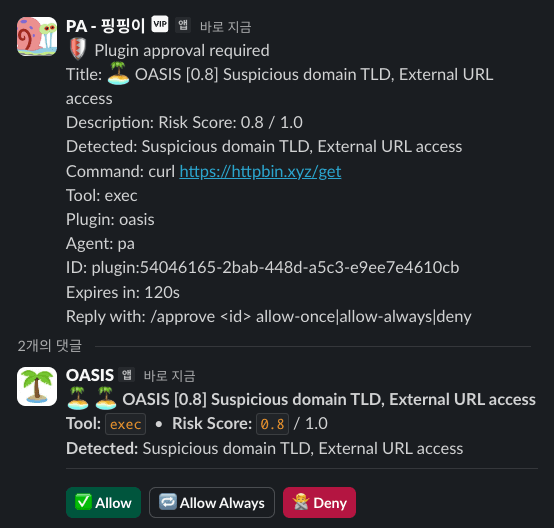
How It Works
OASIS hooks into OpenClaw's before_tool_call pipeline at the Gateway level. Every tool call passes through a three-stage decision:
Agent requests tool call
        │
        ▼
  ┌─────────────────┐
  │ before_tool_call│ ◄── OASIS hook
  └────────┬────────┘
           │
     Read tool? ─── Yes ──→ Pass through ✅
           │
          No
           │
     Pattern scan ──→ score 0.0 ~ 1.0
           │
     ┌─────┴──────┐
   = 1.0        > threshold        ≤ threshold
     │              │                    │
  🚨 Block     ⚠️ Approval         ✅ Auto-allow
  (no override)  (Slack buttons)
Requirements
| Requirement | Minimum Version |
|---|---|
| OpenClaw Gateway | >= 2026.3.28 |
| Node.js | >= 22.14 |
| Slack workspace | Required |
Installation
1. Install Plugin
openclaw plugins install @petercha90/oasis
openclaw gateway restart
2. Create OASIS Slack App
A dedicated Slack app is required for OASIS to work. It handles approval buttons and user interactions.
Step 1: Create the App
-
Go to api.slack.com/apps
-
Click Create New App
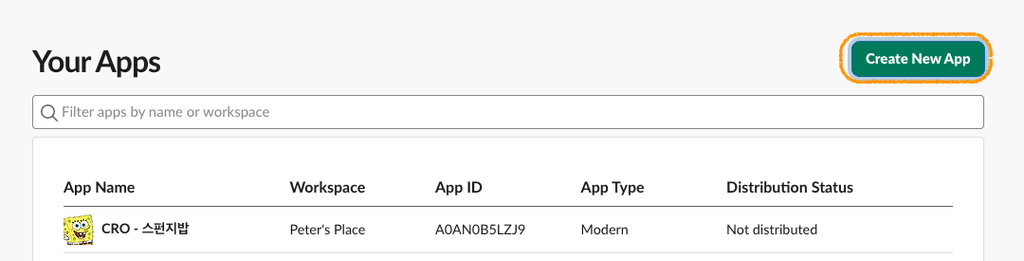 → From scratch
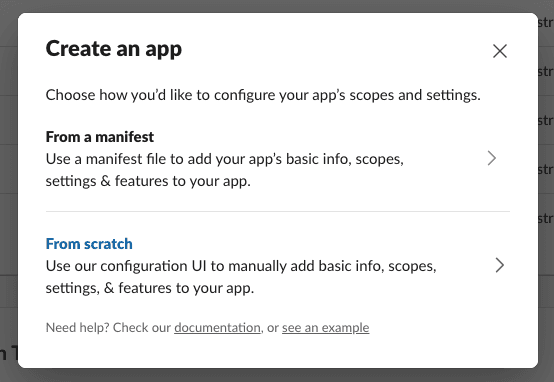
-
App Name:
OASIS -
Pick your workspace → Create App
Step 2: Enable Socket Mode
-
Left sidebar → Socket Mode
-
Toggle Enable Socket Mode to ON
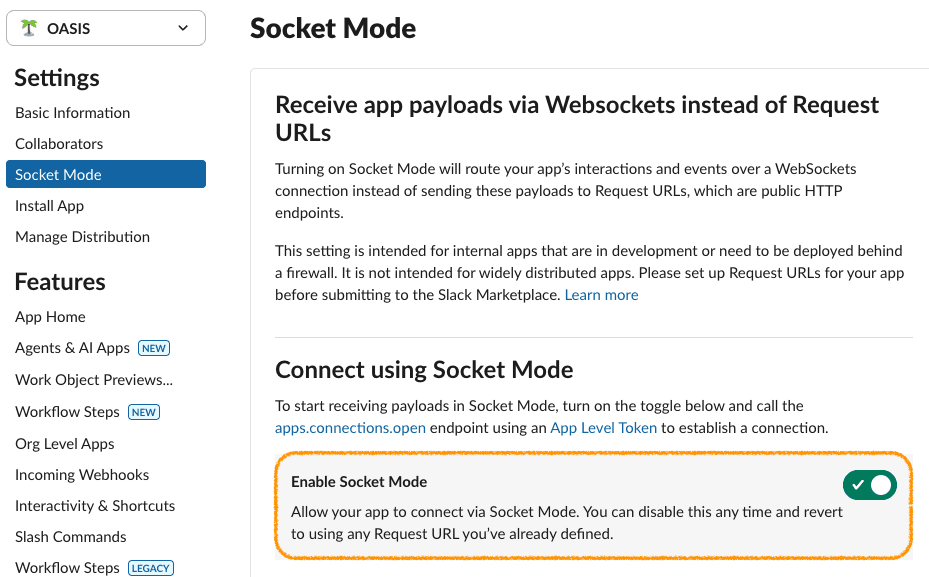
-
You'll be prompted to create an App-Level Token:
- Token Name:
oasis - Scope:
connections:write(auto-selected) - Click Generate
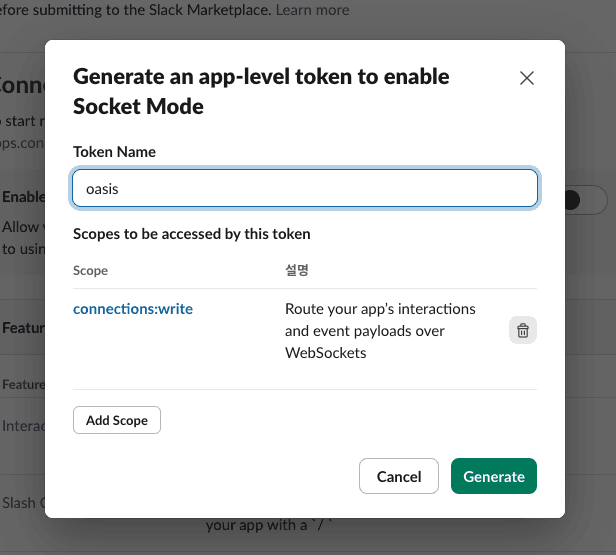
- Token Name:
-
Copy the token starting with
xapp-...— this is your App Token
Step 3: Set Bot Permissions
- Left sidebar → OAuth & Permissions
- Scroll to Scopes → Bot Token Scopes
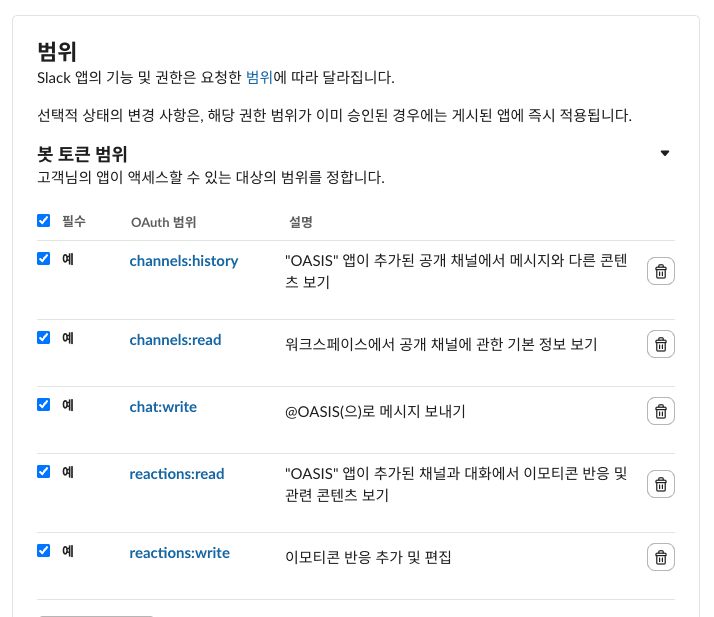
- Click Add an OAuth Scope and add these 5 scopes:
| Scope | Purpose |
|---|---|
chat:write | Post approval summaries and results |
reactions:read | Detect when users react ✅ or 🙅 |
reactions:write | Add ✅ 🙅 reaction hints to approval messages |
channels:history | Read approval messages to extract approval ID |
channels:read | Access channel info |
Step 4: Subscribe to Events
- Left sidebar → Event Subscriptions
- Toggle Enable Events to ON
- Scroll to Subscribe to bot events → Add Bot User Event
- Add these 2 events:
| Event | Purpose |
|---|---|
message.channels | Detect approval messages from OpenClaw agents |
reaction_added | Detect user's Allow (✅) or Deny (🙅) reaction |
<img src="https://raw.githubusercontent.com/PeterCha90/oasis/main/public/8.png"/>
5. Click Save Changes
Step 5: Install to Workspace
-
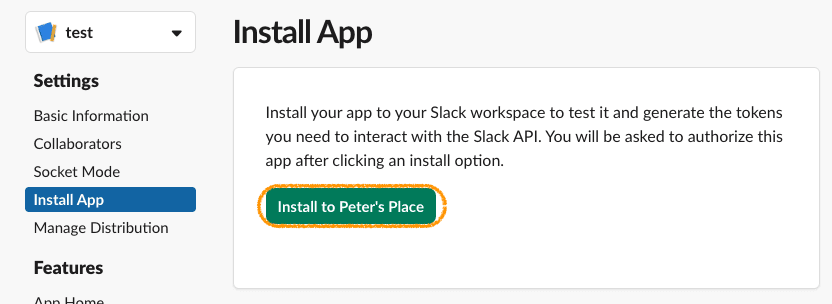
Left sidebar → Install App
-
Click Install to Workspace → Allow
-
Copy the Bot User OAuth Token starting with
xoxb-...— this is your Bot Token
3. Configure OASIS
Add both tokens to your OpenClaw plugin config. You can use direct strings or SecretRef:
Option A: Direct tokens
// ~/.openclaw/openclaw.json
{
  "plugins": {
    "entries": {
      "oasis": {
        "enabled": true,
        "config": {
          "threshold": 0.5,
          "oasisBotToken": "xoxb-your-bot-token-here",
          "oasisAppToken": "xapp-your-app-token-here"
        }
      }
    }
  },
  "approvals": {
    "plugin": {
      "enabled": true
    }
  }
}
Option B: SecretRef (recommended — keeps tokens in .env)
// ~/.openclaw/openclaw.json
{
  "plugins": {
    "entries": {
      "oasis": {
        "enabled": true,
        "config": {
          "threshold": 0.5,
          "oasisBotToken": {
            "source": "env",
            "provider": "default",
            "id": "OASIS_BOT_TOKEN"
          },
          "oasisAppToken": {
            "source": "env",
            "provider": "default",
            "id": "OASIS_APP_TOKEN"
          }
        }
      }
    }
  },
  "approvals": {
    "plugin": {
      "enabled": true
    }
  }
}
# ~/.openclaw/.env
OASIS_BOT_TOKEN=xoxb-your-bot-token
OASIS_APP_TOKEN=xapp-your-app-token
4. Invite OASIS bot to channels
/invite @OASIS
Restart the gateway and OASIS will automatically connect:
openclaw gateway restart
When a tool call requires approval, OASIS posts Allow / Deny / Allow Always buttons in Slack.
Allow Always
For repetitive commands like CronJobs or Slack Webhooks, you can skip repeated approvals by clicking 🔁 Allow Always. This permanently allows the exact tool + command/URL combination.
- Click 🔁 Allow Always on an approval request → the specific command is added to the allowlist
- Future identical calls are auto-approved without prompts
- The allowlist is persisted to disk and survives Gateway restarts
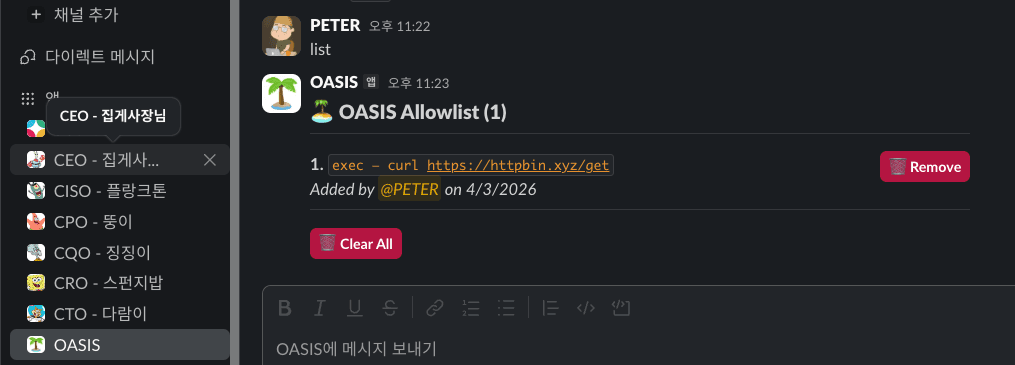
Managing the Allowlist
DM the OASIS bot with list to view, remove individual entries, or clear the entire allowlist:
Tool Classification
| Classification | Tools | Behavior |
|---|---|---|
| Read (free pass) | read, glob, grep, web_search, list, cat | No analysis |
| Execute (risk scan) | exec, bash, write, edit, web_fetch, file_delete, apply_patch | Pattern matching |
Customize via config:
{
  "config": {
    "customReadTools": ["my_safe_tool"],
    "customExecuteTools": ["my_dangerous_tool"]
  }
}
Risk Scoring
All scoring is deterministic pattern matching. No LLM involved.
| ID | Detection | Score | Action |
|---|---|---|---|
BLOCK_DESTRUCTIVE | rm -rf /, fork bomb, mkfs, dd if=/dev/zero | 1.0 | 🚨 Blocked |
BLOCK_PIPE_SHELL | curl | bash, wget | sh | 1.0 | 🚨 Blocked |
PROMPT_INJECTION | ignore previous instructions, you are now | 0.9 | Ask approval |
SECRET_ACCESS | $AWS_SECRET, process.env.TOKEN | 0.8 | Ask approval |
SUSPICIOUS_DOMAIN | .xyz, .tk, .ml, .pw, .top | 0.8 | Ask approval |
DATA_EXFILTRATION | curl -X POST, nc -e, reverse shell | 0.7 | Ask approval |
SENSITIVE_FILE | .env, .ssh/id_rsa, .aws/credentials | 0.6 | Ask approval |
PRIVILEGE_ESCALATION | sudo, chmod 777, chown root | 0.5 | Ask approval |
EXTERNAL_URL | Non-safe-domain HTTP access | 0.3 | Ask approval |
- Score 1.0 = always blocked, no approval possible
- Score > threshold = user approval required (Slack buttons)
- Score ≤ threshold = auto-allowed
- Multiple matches use
max()strategy
Configuration
| Option | Type | Default | Description |
|---|---|---|---|
threshold | number | 0.5 | Risk threshold (0.0 strictest ~ 0.9 most lenient) |
approvalTimeoutMs | number | 120000 | Approval timeout in ms (auto-deny on timeout) |
safeDomains | string[] | [] | Additional safe domains (skip EXTERNAL_URL scoring) |
customPatterns | object[] | [] | Custom detection patterns ({id, regex, score}) |
customReadTools | string[] | [] | Additional read-only tools |
customExecuteTools | string[] | [] | Additional execute tools |
logLevel | string | "info" | debug, info, warn, error |
Built-in Safe Domains
github.com, npmjs.com, pypi.org, crates.io, api.anthropic.com, api.openai.com, docs.openclaw.ai, stackoverflow.com and more.
Uninstall
openclaw plugins uninstall oasis
openclaw gateway restart
Project Structure
oasis/
├── src/
│   ├── index.ts              # Plugin entry (definePluginEntry)
│   ├── scanner.ts            # Risk scoring engine
│   ├── classifier.ts         # Tool classification
│   ├── patterns.ts           # Detection patterns
│   ├── config.ts             # Config loading
│   ├── logger.ts             # Structured logging
│   ├── types.ts              # TypeScript types
│   ├── cli/
│   │   └── setup-wizard.ts   # Plugin CLI commands
│   └── slack/
│       ├── approval-handler.ts # Dedicated OASIS Slack app (Socket Mode)
│       ├── approval-parser.ts  # Parse approval messages
│       └── gateway-client.ts   # Gateway WebSocket client
├── tests/                    # 61 tests across 5 suites
├── openclaw.plugin.json      # Plugin manifest
├── package.json
└── tsconfig.json
Why "OASIS"?
OpenClaw Antidote for Suspicious Injection Signals
Like an oasis in the desert, a safe zone amidst security threats. 🏝️
License
MIT — Peter Cha