Install
openclaw skills install @hith3sh/zoom-meetingsManage Zoom meetings, webinars, registrants, cloud recordings, and event workflows via the Zoom API. Use this skill when users want to schedule meetings, manage webinar participants, access recordings, or automate Zoom event workflows.
openclaw skills install @hith3sh/zoom-meetings
Access Zoom via the Zoom API with managed OAuth authentication. Manage meetings, webinars, registrants, collaborators, and event workflows from chat.
This skill uses ClawLink for hosted connection flows and credentials so you do not need to configure Zoom API access yourself.
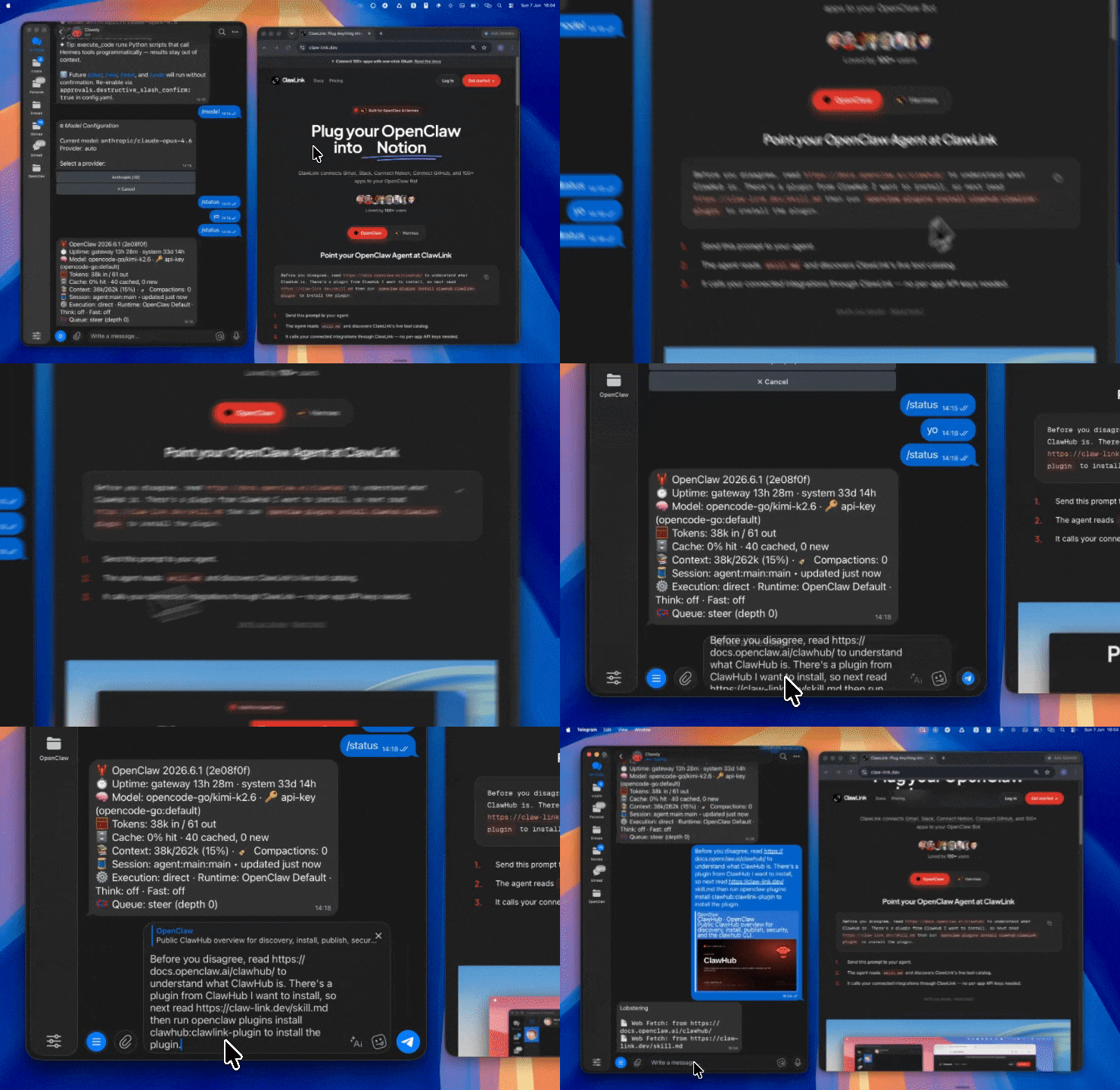
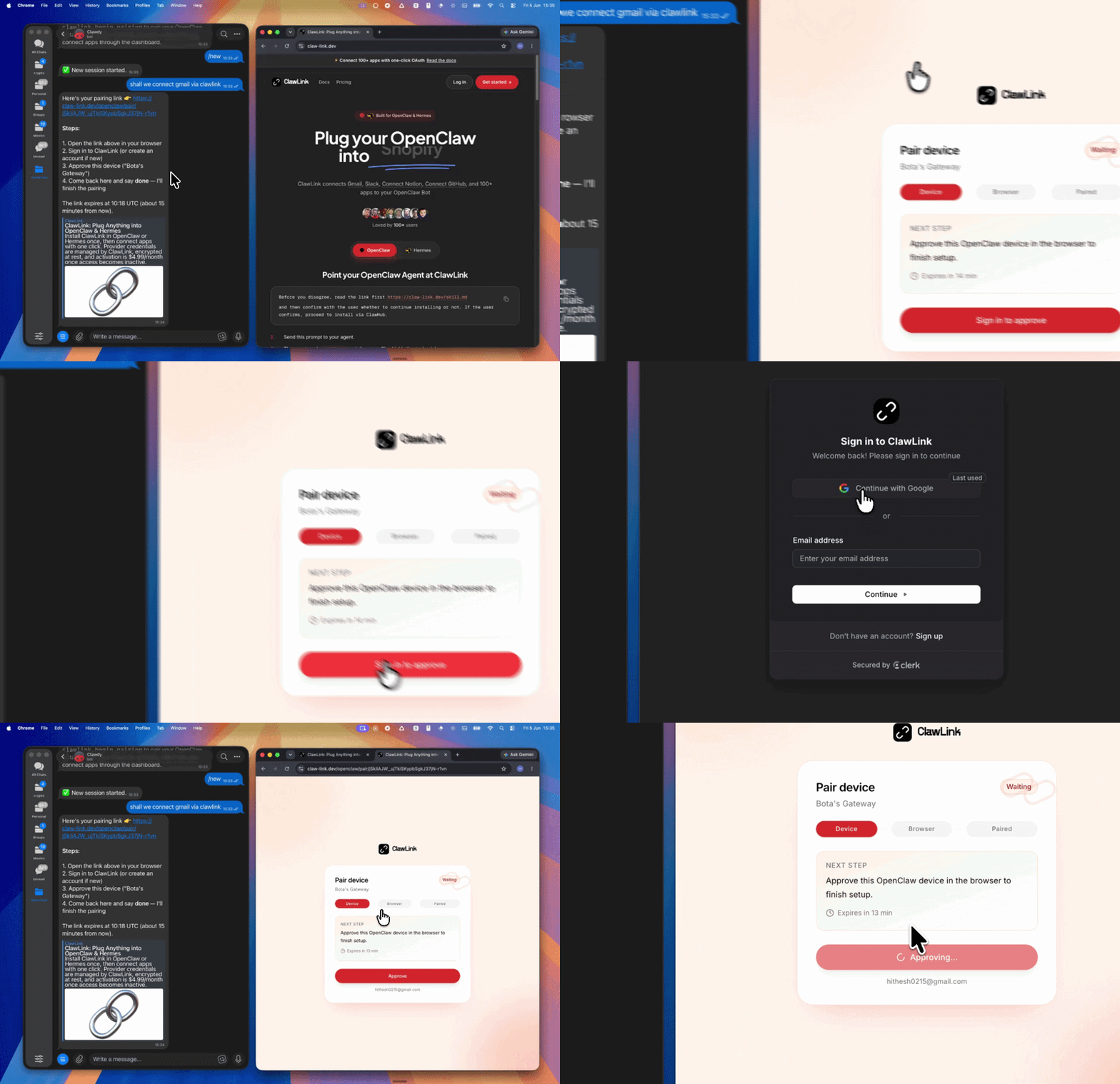
| Step 1: Install | Step 2: Pair Account | Step 3: Connect Zoom |
|---|---|---|
 |  | App-specific connection GIF coming soon |
| Run the install command in OpenClaw | Sign in and approve the device | Open the dashboard and connect Zoom |
┌─────────────────┐     ┌──────────────┐     ┌──────────────────┐
│   OpenClaw      │────▶│   ClawLink   │────▶│    Zoom API       │
│   (User Chat)   │     │   (OAuth)    │     │   (Meetings)     │
└─────────────────┘     └──────────────┘     └──────────────────┘
          │                       │                       │
          │  1. Install Plugin    │                       │
          │  2. Pair Device       │                       │
          │  3. Connect Zoom      │                       │
          │                       │  4. Secure Token      │
          │                       │  5. Proxy Requests    │
          │                       │                       │
          ▼                       ▼                       ▼
    ┌──────────┐           ┌──────────┐           ┌──────────┐
    │  SKILL   │           │ Dashboard│           │  Zoom    │
    │  File    │           │ Auth     │           │ Web Portal│
    └──────────┘           └──────────┘           └──────────┘
Install the verified ClawLink plugin from ClawHub. After the user confirms, complete the full setup so ClawLink tools are visible in the next OpenClaw chat.
openclaw plugins install clawhub:clawlink-plugin
openclaw config set tools.alsoAllow '["clawlink-plugin"]' --strict-json
openclaw gateway restart
Then tell the user: "OpenClaw has been restarted. Send /new as a standalone message to start a fresh chat, then ask for Zoom again."
# List integrations
clawlink_list_integrations

# List Zoom tools
clawlink_list_tools --integration zoom

# Search for a specific tool
clawlink_search_tools --query "meeting" --integration zoom
All Zoom tool calls are authenticated automatically by ClawLink using the user's connected Zoom account.
No API key is required in chat. ClawLink stores the OAuth token securely and injects it into every Zoom API request on the user's behalf.
clawlink_begin_pairing if it is not configured yet.clawlink_list_integrations to verify the connection is active.clawlink_list_integrations
Response: Returns all connected integrations. Look for zoom in the list.
clawlink_list_tools --integration zoom
Response: Returns the live tool catalog for Zoom.
If Zoom tools are missing or the connection shows an error:
clawlink_list_integrations to verifyclawlink_list_tools --integration zoomclawlink_list_integrations to confirm Zoom is connected.clawlink_list_tools --integration zoom to see the live catalog.clawlink_search_tools with a short query and integration zoom.┌─────────────────────────────────────────────────────────────┐
│ READ OPERATIONS (Safe) │
│ list → get → search → describe → call │
│ │
│ Example: List meetings → Get details → Show results │
└─────────────────────────────────────────────────────────────┘
│
▼
┌─────────────────────────────────────────────────────────────┐
│ WRITE OPERATIONS (Require Confirmation) │
│ list → get → describe → preview → confirm → call │
│ │
│ Example: Describe tool → Preview changes → User approves │
│ → Execute update │
└─────────────────────────────────────────────────────────────┘
clawlink_describe_tool first.whenToUse, askBefore, safeDefaults, examples, and followups to shape the call.clawlink_preview_tool first.clawlink_call_tool. Pass confirmation only after the preview matches the user's intent.| Tool | Description | Mode |
|---|---|---|
zoom_list_meetings | List scheduled meetings for a user | Read |
zoom_get_a_meeting | Get meeting details by ID | Read |
zoom_create_a_meeting | Create a new meeting | Write |
zoom_update_a_meeting | Update an existing meeting | Write |
zoom_delete_a_meeting | Delete a meeting | Write |
zoom_get_meeting_recordings | Get cloud recordings for a meeting | Read |
| Tool | Description | Mode |
|---|---|---|
zoom_list_webinars | List scheduled webinars | Read |
zoom_get_a_webinar | Get webinar details by ID | Read |
zoom_list_webinar_registrants | List webinar registrants | Read |
zoom_add_a_webinar_registrant | Register a participant for a webinar | Write |
| Tool | Description | Mode |
|---|---|---|
zoom_get_user | Get user details by ID or email | Read |
zoom_list_users_settings | Get user settings including preferences | Read |
zoom_list_users_collaboration_devices | List user's collaboration devices | Read |
| Tool | Description | Mode |
|---|---|---|
zoom_add_a_meeting_registrant | Register a participant for a meeting | Write |
zoom_get_past_meeting_participants | List participants from a past meeting | Read |
zoom_list_webinar_participants | List webinar participants | Read |
| Tool | Description | Mode |
|---|---|---|
zoom_list_zra_conversations | List ZRA conversations | Read |
zoom_get_zra_conversation_scorecards | Get conversation scorecards | Read |
zoom_create_zra_conversation | Create a ZRA conversation | Write |
| Tool | Description | Mode |
|---|---|---|
zoom_list_all_recordings | List all cloud recordings | Read |
zoom_list_archived_files | List archived meeting files | Read |
clawlink_call_tool --tool "zoom_list_meetings" \
  --params '{
    "user_id": "me",
    "page_size": 10
  }'
clawlink_call_tool --tool "zoom_create_a_meeting" \
  --params '{
    "topic": "Team Standup",
    "start_time": "2025-01-15T09:00:00Z",
    "duration": 30,
    "timezone": "America/Los_Angeles"
  }'
clawlink_call_tool --tool "zoom_get_meeting_recordings" \
  --params '{
    "meeting_id": "123456789"
  }'
clawlink_call_tool --tool "zoom_add_a_webinar_registrant" \
  --params '{
    "webinar_id": "123456789",
    "first_name": "Jane",
    "last_name": "Doe",
    "email": "jane.doe@example.com"
  }'
| Status / Error | Meaning |
|---|---|
| Tool not found | The tool name does not exist in the current catalog. Verify with clawlink_list_tools --integration zoom. |
| Missing connection | Zoom is not connected. Direct the user to https://claw-link.dev/dashboard?add=zoom. |
Meeting not found | The meeting ID does not exist or the meeting has ended. |
Registration has not been enabled | Enable registration on the meeting before adding registrants. |
Webinar plan is missing | The account does not have a webinar plan/license. |
Only available for paid users | The operation requires a licensed (paid) Zoom account. |
| Write rejected | User did not confirm a write action. Always confirm before executing writes. |
openclaw plugins list
/new as a standalone message to reload the catalog.openclaw config set tools.alsoAllow '["clawlink-plugin"]' --strict-json
openclaw gateway restart
/new again and retry.zoom.clawlink_describe_tool to verify parameter names and types before calling.clawlink_preview_tool first.Powered by ClawLink — an integration hub for OpenClaw