Install
openclaw skills install @hith3sh/whatsapp-messagingSend WhatsApp messages, manage templates, handle media, and automate WhatsApp Business messaging workflows via the WhatsApp Business API. Use this skill when users want to send messages, manage templates, or automate customer communication on WhatsApp.
openclaw skills install @hith3sh/whatsapp-messaging
Send WhatsApp messages, manage templates, handle media, and automate WhatsApp Business messaging workflows via the WhatsApp Business API.
This skill uses ClawLink for hosted connection flows and credentials so you do not need to configure WhatsApp API access yourself.
| Step 1: Install | Step 2: Pair Account | Step 3: Connect WhatsApp |
|---|---|---|
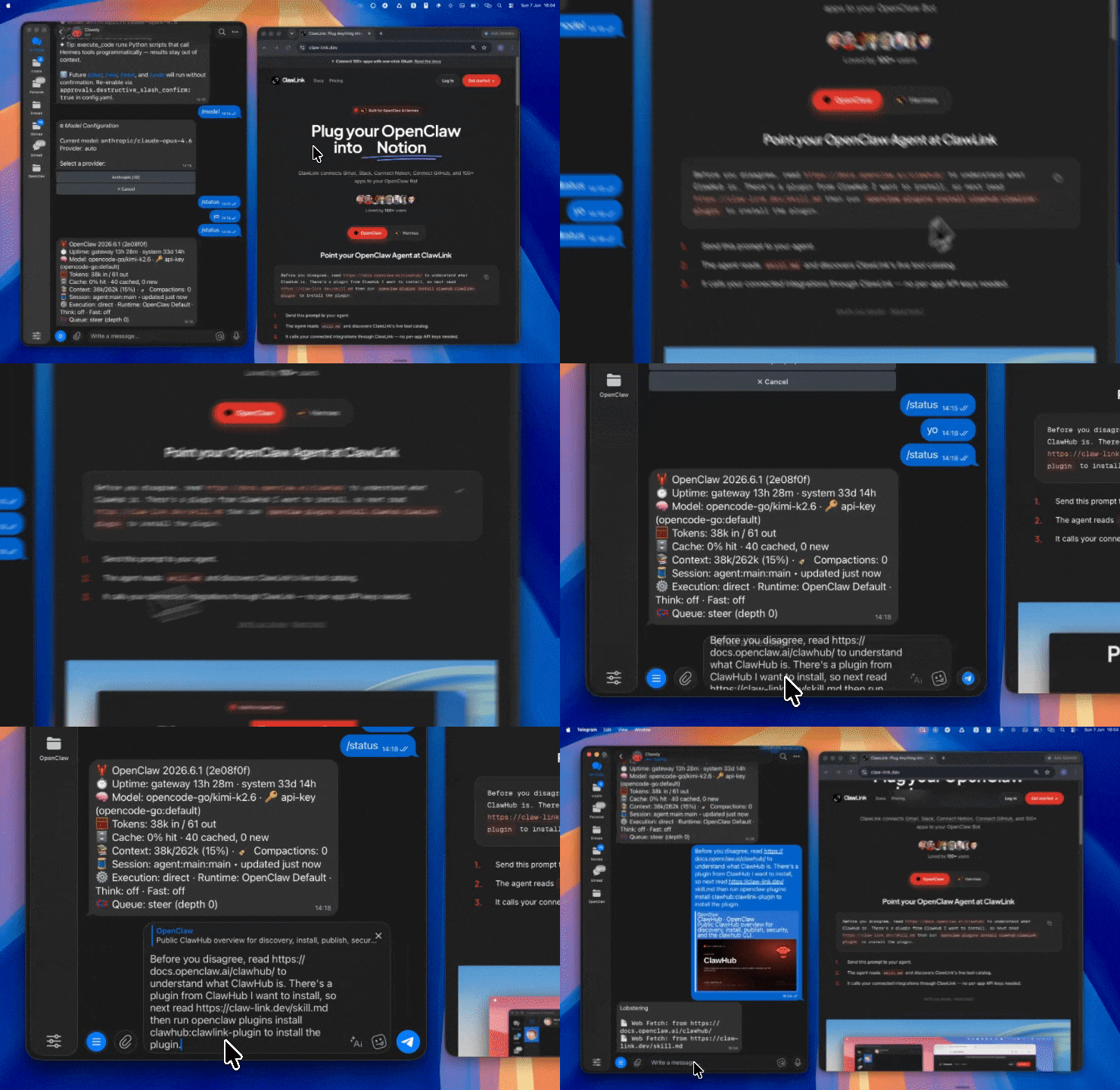 | 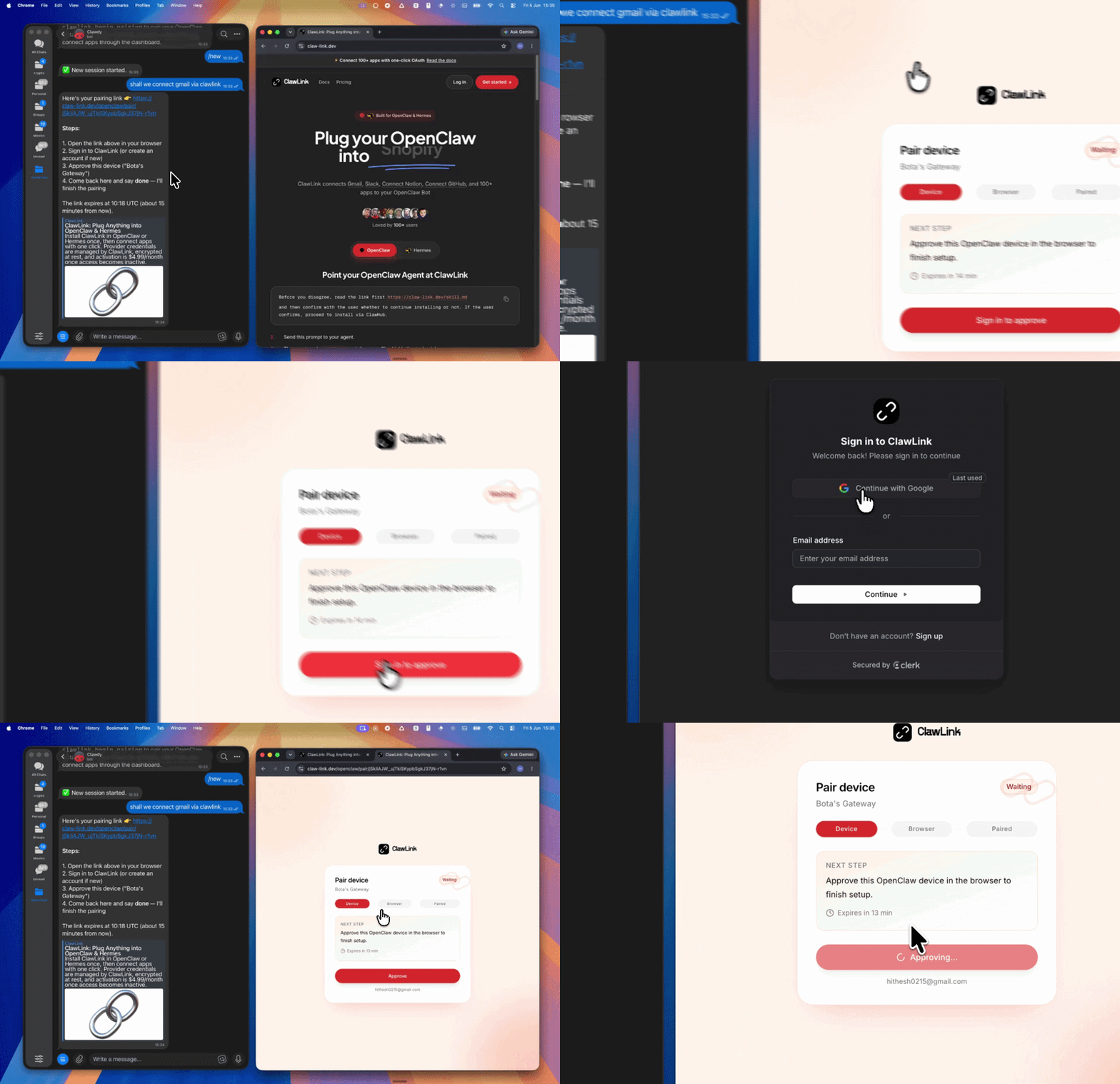 | App-specific connection GIF coming soon |
| Run the install command in OpenClaw | Sign in and approve the device | Open the dashboard and connect WhatsApp |
┌─────────────────┐     ┌──────────────┐     ┌──────────────────┐
│   OpenClaw      │────▶│   ClawLink   │────▶│  WhatsApp Cloud  │
│   (User Chat)   │     │   (OAuth)    │     │      API         │
└─────────────────┘     └──────────────┘     └──────────────────┘
         │                       │                       │
         │  1. Install Plugin    │                       │
         │  2. Pair Device       │                       │
         │  3. Connect WhatsApp  │                       │
         │                       │  4. Secure Token      │
         │                       │  5. Proxy Requests   │
         │                       │                       │
         ▼                       ▼                       ▼
   ┌──────────┐           ┌──────────┐           ┌──────────┐
   │  SKILL   │           │ Dashboard│           │ WhatsApp│
   │  File    │           │ Auth     │           │ Business │
   └──────────┘           └──────────┘           └──────────┘
Install the verified ClawLink plugin from ClawHub. After the user confirms, complete the full setup so ClawLink tools are visible in the next OpenClaw chat.
openclaw plugins install clawhub:clawlink-plugin
openclaw config set tools.alsoAllow '["clawlink-plugin"]' --strict-json
openclaw gateway restart
Then tell the user: "OpenClaw has been restarted. Send /new as a standalone message to start a fresh chat, then ask for WhatsApp again."
# List phone numbers
clawlink_call_tool --tool "whatsapp_get_phone_numbers" --params '{}'

# Send a text message
clawlink_call_tool --tool "whatsapp_send_message" --params '{"phone_number": "+15551234567", "message": "Hello from OpenClaw!"}'

# List message templates
clawlink_call_tool --tool "whatsapp_get_message_templates" --params '{}'
All WhatsApp tool calls are authenticated automatically by ClawLink using the user's connected WhatsApp Business account token.
No API token is required in chat. ClawLink stores the token securely and injects it into every WhatsApp Business API request on the user's behalf.
clawlink_begin_pairing if it is not configured yet.clawlink_list_integrations to verify the connection is active.clawlink_list_integrations
Response: Returns all connected integrations. Look for whatsapp in the list.
clawlink_list_tools --integration whatsapp
Response: Returns the live tool catalog for WhatsApp.
If WhatsApp tools are missing or the connection shows an error:
clawlink_list_integrations to verifyclawlink_list_tools --integration whatsapp| Tool | Description | Mode |
|---|---|---|
whatsapp_get_phone_numbers | List all phone numbers on the WhatsApp Business account | Read |
whatsapp_get_phone_number | Get details for a specific phone number | Read |
| Tool | Description | Mode |
|---|---|---|
whatsapp_send_message | Send a text message to a WhatsApp number | Write |
whatsapp_send_media | Send an image, video, audio, or document | Write |
whatsapp_send_media_by_id | Send media using a previously uploaded media ID | Write |
whatsapp_send_location | Send a location message with coordinates | Write |
whatsapp_send_contacts | Send contact card(s) to a WhatsApp user | Write |
whatsapp_send_interactive_buttons | Send a message with up to 3 reply buttons | Write |
whatsapp_send_interactive_list | Send a list message with up to 10 options | Write |
whatsapp_send_template_message | Send an approved message template | Write |
| Tool | Description | Mode |
|---|---|---|
whatsapp_upload_media | Upload media (image, video, audio, document) to WhatsApp servers | Write |
whatsapp_get_media_info | Get metadata and download URL for uploaded media | Read |
| Tool | Description | Mode |
|---|---|---|
whatsapp_get_message_templates | List all message templates | Read |
whatsapp_get_template_status | Get approval status of a specific template | Read |
whatsapp_create_message_template | Create a new message template | Write |
whatsapp_delete_message_template | Delete a message template | Write |
| Tool | Description | Mode |
|---|---|---|
whatsapp_get_business_profile | Get the business profile information | Read |
clawlink_call_tool --tool "whatsapp_get_phone_numbers" \
  --params '{}'
clawlink_call_tool --tool "whatsapp_send_message" \
  --params '{
    "phone_number_id": "PHONE_NUMBER_ID",
    "recipient_phone": "+15551234567",
    "message": "Hi! Your order #12345 has shipped and is on its way."
  }'
clawlink_call_tool --tool "whatsapp_send_media" \
  --params '{
    "phone_number_id": "PHONE_NUMBER_ID",
    "recipient_phone": "+15551234567",
    "media_url": "https://example.com/receipt.png",
    "caption": "Here is your receipt for order #12345"
  }'
clawlink_call_tool --tool "whatsapp_send_interactive_buttons" \
  --params '{
    "phone_number_id": "PHONE_NUMBER_ID",
    "recipient_phone": "+15551234567",
    "header": "Order Update",
    "body": "Has your package arrived?",
    "buttons": [
      {"id": "yes", "title": "Yes"},
      {"id": "no", "title": "No"}
    ]
  }'
clawlink_call_tool --tool "whatsapp_send_template_message" \
  --params '{
    "phone_number_id": "PHONE_NUMBER_ID",
    "recipient_phone": "+15551234567",
    "template_name": "shipping_confirmation",
    "language_code": "en",
    "components": [
      {
        "type": "body",
        "parameters": [
          {"type": "text", "text": "John"},
          {"type": "text", "text": "#12345"}
        ]
      }
    ]
  }'
clawlink_call_tool --tool "whatsapp_upload_media" \
  --params '{
    "phone_number_id": "PHONE_NUMBER_ID",
    "media_url": "https://example.com/image.png",
    "media_type": "image/png"
  }'
clawlink_list_integrations to confirm WhatsApp is connected.clawlink_list_tools --integration whatsapp to see the live catalog.clawlink_search_tools with a short query and integration whatsapp.┌─────────────────────────────────────────────────────────────┐
│ READ OPERATIONS (Safe) │
│ list → get → describe │
│ │
│ Example: List templates → Get template status → Report │
└─────────────────────────────────────────────────────────────┘
│
▼
┌─────────────────────────────────────────────────────────────┐
│ WRITE OPERATIONS (Require Confirmation) │
│ describe → preview → confirm → call │
│ │
│ Example: Preview message → User approves → Send message │
└─────────────────────────────────────────────────────────────┘
clawlink_describe_tool first.whenToUse, askBefore, safeDefaults, examples, and followups to shape the call.clawlink_preview_tool first.clawlink_call_tool. Pass confirmation only after the preview matches the user's intent.phone_number_id from whatsapp_get_phone_numbers to send messages.whatsapp_get_media_info to get a fresh download URL.+1 for US).| Status / Error | Meaning |
|---|---|
| Tool not found | The tool name does not exist in the current catalog. Verify with clawlink_list_tools --integration whatsapp. |
| Missing connection | WhatsApp is not connected. Direct the user to https://claw-link.dev/dashboard?add=whatsapp. |
131026 — Message undeliverable | The recipient's phone number is not a valid WhatsApp account. |
133010 — Phone number not on WhatsApp | The recipient has not registered on WhatsApp. |
131047 — Outside 24-hour window | Must use a template message. Send a template instead. |
Template not found | The template name does not exist or hasn't been approved. |
Template rejected | The template is pending review or was rejected by WhatsApp. |
Media upload failed | The media URL is inaccessible or the format is unsupported. |
| Write rejected | User did not confirm a write action. Always confirm before executing writes. |
openclaw plugins list
/new as a standalone message to reload the catalog.openclaw config set tools.alsoAllow '["clawlink-plugin"]' --strict-json
openclaw gateway restart
/new again and retry.Powered by ClawLink — an integration hub for OpenClaw