Install
openclaw skills install @hith3sh/muralMural API integration with managed OAuth for collaborative whiteboard automation. Browse workspaces, rooms, murals, and templates. Create sticky notes, search content, and manage visual collaboration. Use this skill when users want to explore Mural boards, add sticky notes to murals, search murals by keyword, or navigate workspace hierarchies.
openclaw skills install @hith3sh/mural
Mural is a collaborative whiteboard platform for visual thinking and team collaboration. This integration provides managed OAuth through ClawLink, so you can browse workspaces, rooms, murals, and widgets without handling API keys or tokens yourself.
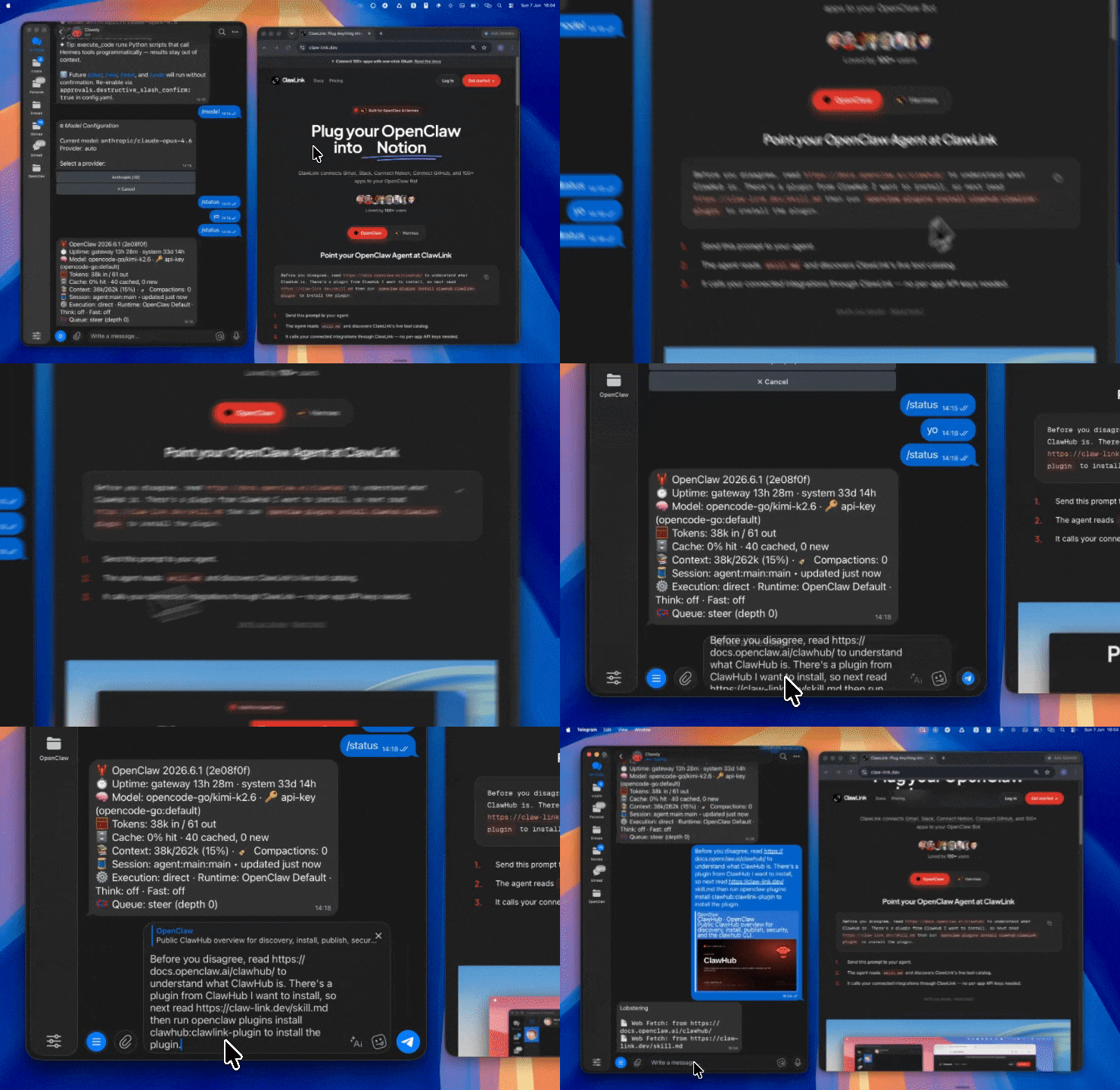
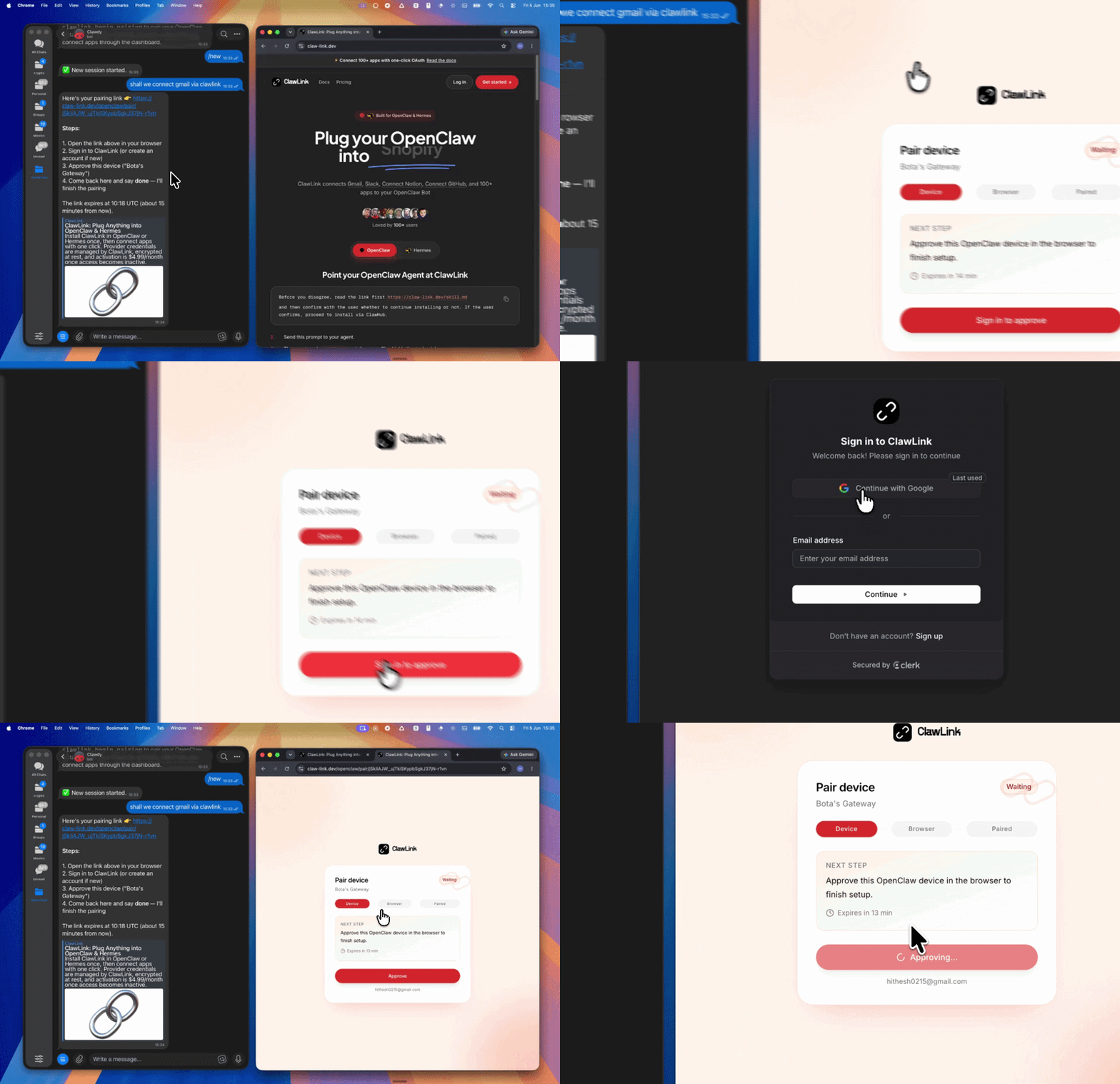
| Step 1: Install | Step 2: Pair Account | Step 3: Connect Mural |
|---|---|---|
 |  | App-specific connection GIF coming soon |
| Run the install command in OpenClaw | Sign in and approve the device | Open the dashboard and connect Mural |
┌─────────────────┐     ┌──────────────┐     ┌──────────────────┐
│   OpenClaw      │────▶│   ClawLink   │────▶│   Mural API      │
│   (User Chat)   │     │   (OAuth)    │     │                  │
└─────────────────┘     └──────────────┘     └──────────────────┘
openclaw plugins install clawhub:clawlink-plugin
openclaw config set tools.alsoAllow '["clawlink-plugin"]' --strict-json
openclaw gateway restart
List your workspaces and browse murals:
clawlink_execute_tool --integration mural --tool mural_get_workspaces
Search for a specific mural by name:
clawlink_execute_tool --integration mural --tool mural_search_murals --args '{"query": "sprint retro", "workspaceId": "ws-123"}'
Add a sticky note to a mural:
clawlink_execute_tool --integration mural --tool mural_create_sticky_note --args '{"muralId": "mur-456", "stickies": [{"x": 100, "y": 200, "text": "Action item: Update docs"}]}'
Mural uses OAuth 2.0 managed by ClawLink. No API keys are needed. When you connect Mural through the ClawLink dashboard, you authorize access via a standard OAuth login flow. The connection is stored securely and refreshed automatically.
Connect at: https://claw-link.dev/dashboard?add=mural
List connections:
clawlink_list_integrations
Verify connection:
clawlink_execute_tool --integration mural --tool mural_get_current_user
Reconnect: If a connection expires, visit the dashboard URL above and reconnect Mural.
| Tool | Description | Mode |
|---|---|---|
mural_authorization_request | Initiate OAuth 2.0 authorization process | Read |
mural_get_current_user | Retrieve authenticated user profile information | Read |
| Tool | Description | Mode |
|---|---|---|
mural_get_workspace | Retrieve details of a specific workspace by ID | Read |
mural_get_workspaces | List all workspaces the authenticated user belongs to | Read |
| Tool | Description | Mode |
|---|---|---|
mural_get_room | Retrieve details of a specific room by ID | Read |
mural_list_rooms | List all rooms within a workspace | Read |
mural_list_open_rooms | List discoverable open rooms in a workspace | Read |
mural_search_rooms | Search rooms within a workspace by name or description | Read |
mural_list_room_users | List members and guests for a room | Read |
| Tool | Description | Mode |
|---|---|---|
mural_list_room_murals | List all murals within a room | Read |
mural_list_workspace_murals | List all murals in a workspace owned or joined by the user | Read |
mural_list_recent_murals | List recently opened murals in a workspace | Read |
mural_search_murals | Search murals within a workspace by query text | Read |
mural_create_sticky_note | Create one or more sticky notes on a mural | Write |
mural_get_mural_widgets | Retrieve all widgets within a specified mural | Read |
mural_get_files_for_mural | Retrieve file widgets attached to a mural | Read |
| Tool | Description | Mode |
|---|---|---|
mural_list_folders | List all folders within a room | Read |
| Tool | Description | Mode |
|---|---|---|
mural_list_templates | Retrieve all default Mural templates | Read |
mural_list_workspace_templates | List default and custom templates for a workspace | Read |
mural_list_recent_templates | Retrieve recently used templates in a workspace | Read |
mural_search_templates | Search templates within a workspace by name or keyword | Read |
| Tool | Description | Mode |
|---|---|---|
mural_list_tags | Retrieve all tags in a mural | Read |
List workspaces and get murals:
{
  "tool": "mural_get_workspaces",
  "args": {}
}
Search for murals containing "roadmap":
{
  "tool": "mural_search_murals",
  "args": {
    "query": "roadmap",
    "workspaceId": "workspace-uuid-here"
  }
}
Add sticky notes to a mural:
{
  "tool": "mural_create_sticky_note",
  "args": {
    "muralId": "mural-uuid-here",
    "stickies": [
      {"x": 100, "y": 200, "text": "First note"},
      {"x": 300, "y": 400, "text": "Second note", "shape": "circle"}
    ]
  }
}
Get all widgets in a mural:
{
  "tool": "mural_get_mural_widgets",
  "args": {
    "muralId": "mural-uuid-here"
  }
}
Browse room members:
{
  "tool": "mural_list_room_users",
  "args": {
    "roomId": "room-uuid-here"
  }
}
clawlink_list_integrations to confirm mural is connected.clawlink_list_tools --integration mural to see the live catalog.mural_get_workspaces to discover available workspaces.mural_list_rooms to navigate rooms within a workspace.mural_list_room_murals or mural_search_murals to find specific murals.Read Flow:
get_workspaces → get_room / list_rooms → list_room_murals → get_mural_widgets
Write Flow:
get_workspaces → search_murals → create_sticky_note (confirm required)
stickies parameter, not strings or nested objects.mural_search_murals tool returns murals the user owns or is a member of, not all murals in the workspace.| Status / Error | Meaning |
|---|---|
| 401 Unauthorized | OAuth token expired; reconnect Mural from the dashboard |
| 403 Forbidden | User lacks access to the requested workspace, room, or mural |
| 404 Not Found | Invalid workspace, room, or mural ID |
| 429 Too Many Requests | Rate limit exceeded; retry after a short delay |
Run clawlink_list_tools --integration mural to verify the integration is active. If empty, reconnect at https://claw-link.dev/dashboard?add=mural.
Ensure you pass valid UUIDs for workspaceId, roomId, and muralId. These are obtained from parent-level listing tools.
Verify the stickies parameter is a flat array of objects with x, y, and text fields. Do not wrap in extra objects or pass as strings.
Powered by ClawLink -- an integration hub for OpenClaw