

Install
openclaw skills install @hith3sh/dynamics-365Work with Microsoft Dynamics 365 CRM records, accounts, contacts, leads, opportunities, and activities - powered by ClawLink.
openclaw skills install @hith3sh/dynamics-365
Work with Dynamics 365 from chat — manage CRM records, accounts, contacts, leads, opportunities, and activities.
Powered by ClawLink, an integration hub for OpenClaw that handles hosted connection flows and credentials so you don't need to configure Dynamics 365 API access yourself.
| Step 1: Install | Step 2: Pair Account | Step 3: Connect Dynamics 365 |
|---|---|---|
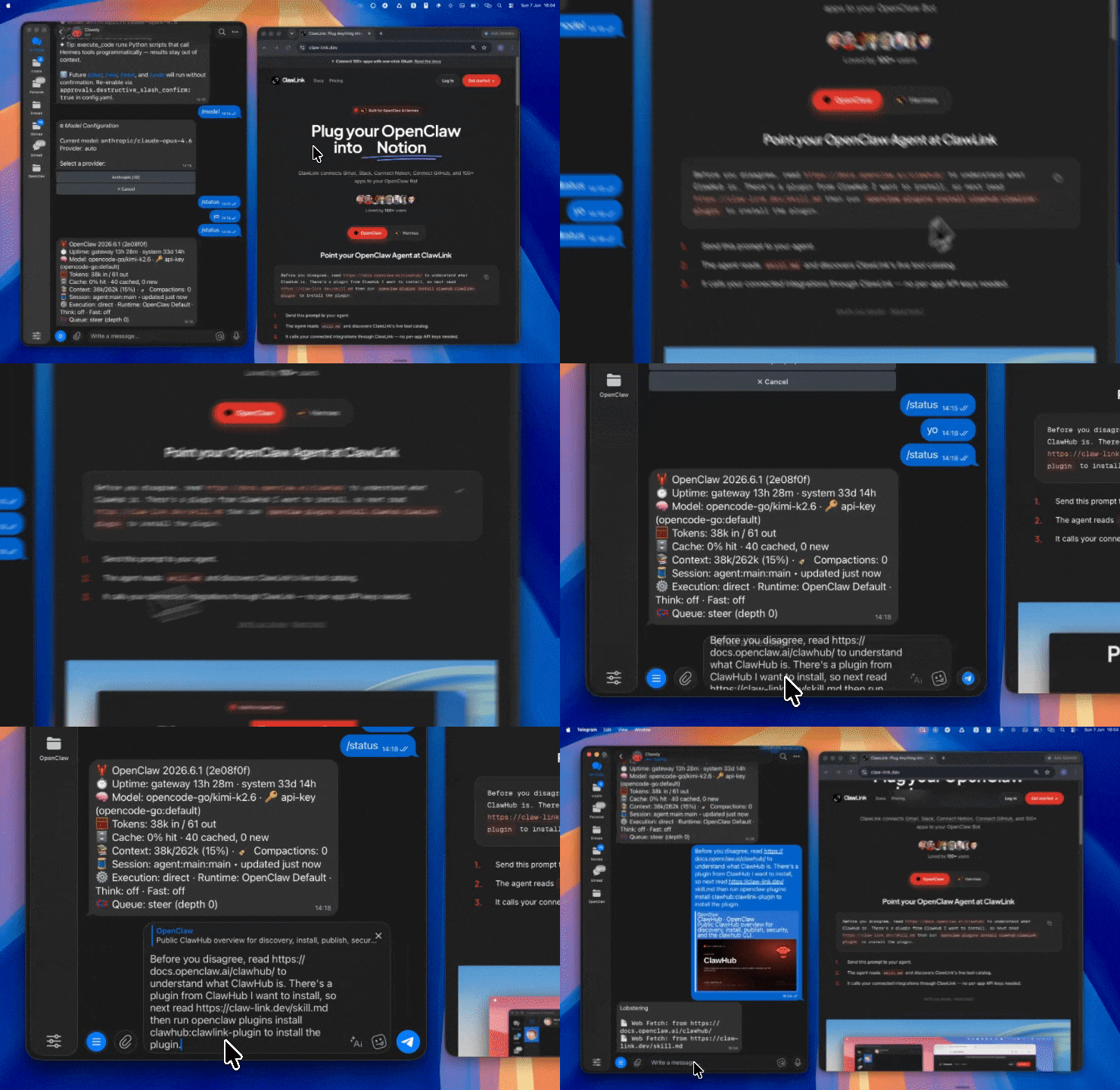 | 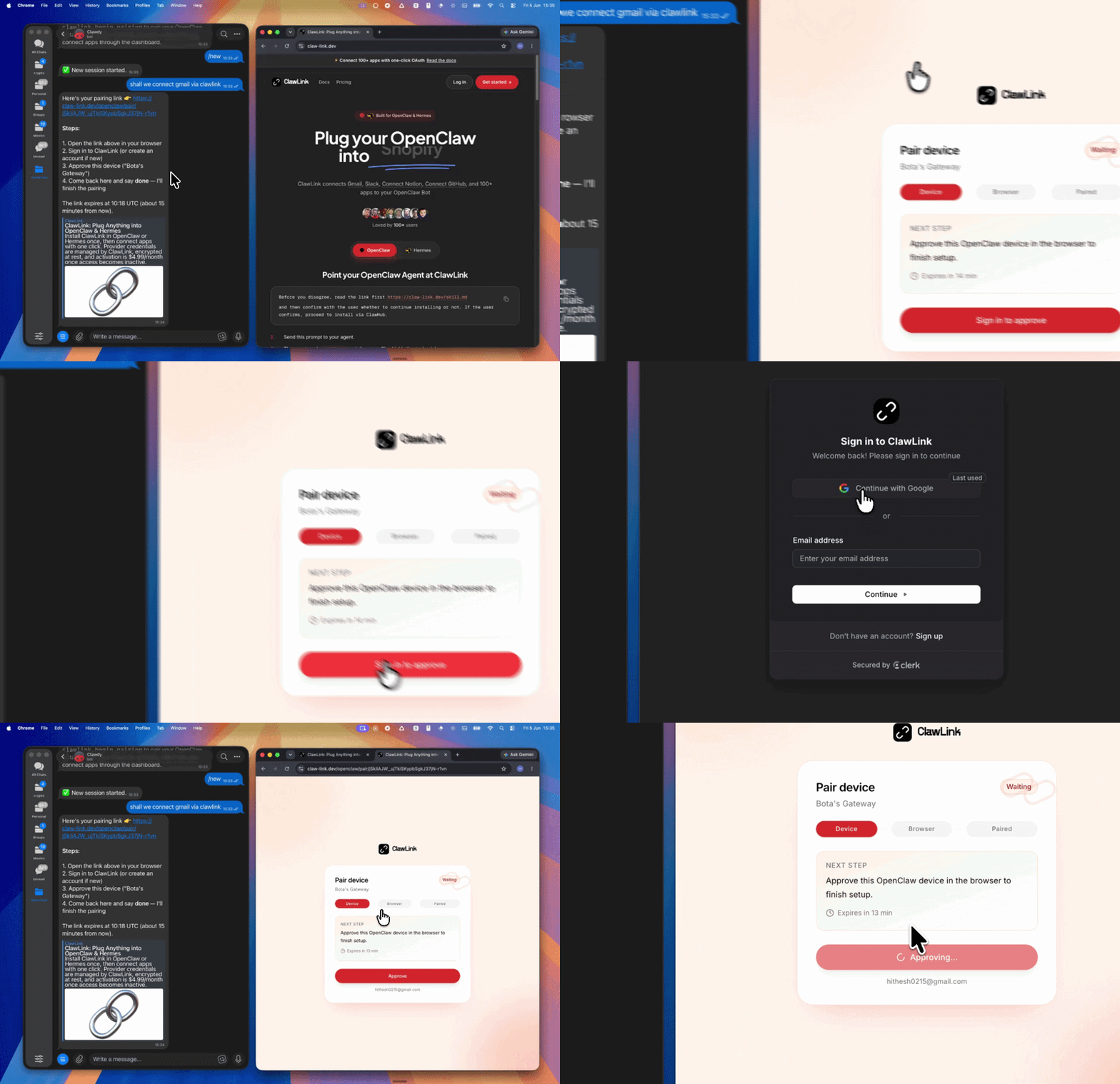 | App-specific connection GIF coming soon |
| Run the install command in OpenClaw | Sign in and approve the device | Open the dashboard and connect Dynamics 365 |
User → ClawLink OAuth → Microsoft Dynamics 365 account
         ↓
    OpenClaw tools
    (via ClawLink)
Step 1 — Install the ClawLink plugin:
openclaw plugins install clawhub:clawlink-plugin
Start a fresh chat after installing.
Step 2 — Pair ClawLink:
clawlink_begin_pairingStep 3 — Connect Dynamics 365: Open claw-link.dev/dashboard?add=dynamics-365, complete the OAuth flow, then confirm.
App-specific connection GIF coming soon
Step 4 — Verify and discover:
// 1. Verify Dynamics 365 is connected
clawlink_list_integrations()

// 2. List available tools
clawlink_list_tools({ integration: "dynamics-365" })

// 3. Search tools if needed
clawlink_search_tools({ query: "lead", integration: "dynamics-365" })
┌─────────────────────────────────────────────────────────┐
│                    OpenClaw (you)                       │
├─────────────────────────────────────────────────────────┤
│  ClawLink Plugin  →  clawlink_* tools                   │
├─────────────────────────────────────────────────────────┤
│                    ClawLink Cloud                       │
│         (credentials, connection state, routing)        │
├─────────────────────────────────────────────────────────┤
│         Microsoft Dynamics 365 Web API                  │
│              (user's CRM account)                       │
└─────────────────────────────────────────────────────────┘
| Tool | Description | Risk |
|---|---|---|
dynamics365_dynamicscrm_create_account | Create a new account entity record | confirm |
dynamics365_dynamicscrm_create_case | Create a new case (incident) entity record | confirm |
dynamics365_dynamicscrm_create_contact | Create a new contact entity record | confirm |
dynamics365_dynamicscrm_create_invoice | Create a new invoice entity record | confirm |
dynamics365_dynamicscrm_create_lead | Create a new lead entity record | confirm |
dynamics365_dynamicscrm_create_opportunity | Create a new opportunity entity record | confirm |
dynamics365_dynamicscrm_create_sales_order | Create a new sales order entity record | confirm |
| Tool | Description | Risk |
|---|---|---|
dynamics365_dynamicscrm_get_a_invoice | Get a specific invoice by ID | safe |
dynamics365_dynamicscrm_get_a_lead | Get a specific lead by ID | safe |
dynamics365_dynamicscrm_get_all_leads | Get all leads from the CRM | safe |
dynamics365_get_all_invoices_action | Get all invoices | safe |
| Tool | Description | Risk |
|---|---|---|
dynamics365_dynamicscrm_update_case | Update an existing case (incident) | confirm |
dynamics365_dynamicscrm_update_invoice | Update an existing invoice | confirm |
dynamics365_dynamicscrm_update_lead | Update an existing lead | confirm |
dynamics365_dynamicscrm_update_opportunity | Update an existing opportunity | confirm |
dynamics365_dynamicscrm_update_sales_order | Update an existing sales order | confirm |
// Create a new lead
const lead = await clawlink_call_tool({
  tool: "dynamics365_dynamicscrm_create_lead",
  parameters: {
    subject: "New product inquiry",
    firstname: "Jane",
    lastname: "Doe",
    emailaddress1: "jane.doe@example.com",
    companyname: "Acme Corp"
  }
});

// Get a specific lead
const specificLead = await clawlink_call_tool({
  tool: "dynamics365_dynamicscrm_get_a_lead",
  parameters: { lead_id: "abc123" }
});

// Get all leads
const allLeads = await clawlink_call_tool({
  tool: "dynamics365_dynamicscrm_get_all_leads",
  parameters: {}
});

// Update a lead
await clawlink_call_tool({
  tool: "dynamics365_dynamicscrm_update_lead",
  parameters: {
    lead_id: "abc123",
    subject: "Updated subject line",
    telephone1: "+1-555-0100"
  }
});
// Create an account
const account = await clawlink_call_tool({
  tool: "dynamics365_dynamicscrm_create_account",
  parameters: {
    name: "Acme Corporation",
    telephone1: "+1-555-0100",
    address1_city: "Seattle"
  }
});

// Create a contact
const contact = await clawlink_call_tool({
  tool: "dynamics365_dynamicscrm_create_contact",
  parameters: {
    firstname: "John",
    lastname: "Smith",
    emailaddress1: "john.smith@acme.com",
    parentcustomerid_account: account.id
  }
});
// Create an opportunity
const opportunity = await clawlink_call_tool({
  tool: "dynamics365_dynamicscrm_create_opportunity",
  parameters: {
    name: "Enterprise deal - Acme Corp",
    estimatedvalue: 50000,
    estimatedclosedate: "2024-06-30"
  }
});

// Update an opportunity
await clawlink_call_tool({
  tool: "dynamics365_dynamicscrm_update_opportunity",
  parameters: {
    opportunity_id: "opportunity123",
    estimatedvalue: 75000,
    description: "Expanded scope"
  }
});

// Create a sales order
const order = await clawlink_call_tool({
  tool: "dynamics365_dynamicscrm_create_sales_order",
  parameters: {
    name: "SO-001",
    customerid_account: "account123"
  }
});
// Create a case
const case = await clawlink_call_tool({
  tool: "dynamics365_dynamicscrm_create_case",
  parameters: {
    title: "Technical support request",
    customerid_account: "account123",
    caseorigincode: "Web"
  }
});

// Update a case
await clawlink_call_tool({
  tool: "dynamics365_dynamicscrm_update_case",
  parameters: {
    incident_id: "case123",
    description: "Issue resolved"
  }
});

// Get all invoices
const invoices = await clawlink_call_tool({
  tool: "dynamics365_get_all_invoices_action",
  parameters: {}
});

// Get a specific invoice
const invoice = await clawlink_call_tool({
  tool: "dynamics365_dynamicscrm_get_a_invoice",
  parameters: { invoice_id: "inv123" }
});
| Error pattern | Likely cause | Resolution |
|---|---|---|
estimatedclosedate required | Server-side requirement for opportunity | Include estimatedclosedate when creating opportunities |
transactioncurrency required | Server-side requirement for some entities | Ensure transaction currency is set at server level |
entity not found | Wrong entity ID or type | Verify entity ID format and type |
permission denied | Missing Dynamics 365 permissions | User may need to reconnect with proper CRM roles |
Tools not showing up after install:
clawlink_list_integrations to confirm ClawLink is paired"Permission denied" errors:
Opportunity/invoice creation fails:
estimatedclosedate for opportunitiesPowered by ClawLink — your OpenClaw integration hub for Dynamics 365.